Skip to content

How to configure and optimize a new Serverless Framework project with TypeScript

How to configure and optimize a new Serverless Framework project with TypeScript

This article was written over 18 months ago and may contain information that is out of date. Some content may be relevant but please refer to the relevant official documentation or available resources for the latest information.

How to configure and optimize a new Serverless Framework project with TypeScript If you’re trying to ship some serverless functions to the cloud quickly, Serverless Framework is a great way to deploy to AWS Lambda quickly. It allows you to deploy APIs, schedule tasks, build workflows, and process cloud events through a code configuration. Serverless Framework supports all the same language runtimes as Lambda, so you can use JavaScript, Ruby, Python, PHP, PowerShell, C#, and Go. When writing JavaScript though, TypeScript has emerged as a popular choice as it is a superset of the language and provides static typing, which many developers have found invaluable. In this post, we will set up a new Serverless Framework project that uses TypeScript and some of the optimizations I recommend for collaborating with teams. These will be my preferences, but I’ll mention other great alternatives that exist as well.

Starting a New Project

The first thing we’ll want to ensure is that we have the serverless framework installed locally so we can utilize its commands. You can install this using npm:

npm install -g serverless

From here, we can initialize the project our project by running the serverless command to run the CLI. You should see a prompt like the following:

Output of running the serverless CLI showing prompts to initialize a new project

We’ll just use the Node.js - Starter for this demo since we’ll be doing a lot of our customization, but you should check out the other options. At this point, give your project a name. If you use the Serverless Dashboard, select the org you want to use or skip it. For this, we’ll skip this step as we won’t be using the dashboard. We’ll also skip deployment, but you can run this step using your default AWS profile.

You’ll now have an initialized project with 4 files: .gitignore index.js - this holds our handler that is configured in the configuration README.md - this has some useful framework commands that you may find useful serverless.yml - this is the main configuration file for defining your serverless infrastructure

We’ll cover these in more depth in a minute, but this setup lacks many things. First, I can’t write TypeScript files. I also don’t have a way to run and test things locally. Let’s solve these.

Enabling TypeScript and Local Dev

Serverless Framework’s most significant feature is its rich plugin library. There are 2 packages I install on any project I’m working on:

Serverless Offline emulates AWS features so you can test your API functions locally. There aren’t any alternatives to this for Serverless Framework, and it doesn’t handle everything AWS can do. For instance, authorizer functions don’t work locally, so offline development may not be on the table for you if this is a must-have feature. There are some other limitations, and I’d consult their issues and READMEs for a thorough understanding, but I’ve found this to be excellent for 99% of projects I’ve done with the framework.

Serverless Esbuild allows you to use TypeScript and gives you extremely fast bundler and minifier capabilities. There are a few alternatives for TypeScript, but I don’t like them for a few reasons. First is Serverless Bundle, which will give you a fully configured webpack-based project with other features like linters, loaders, and other features pre-configured. I’ve had to escape their default settings on several occasions and found the plugin not to be as flexible as I wanted. If you need that advanced configuration but want to stay on webpack, Serverless Webpack allows you to take all of what Bundle does and extend it with your customizations. If I’m getting to this level, though, I just want a zero-configuration option which esbuild can be, so I opt for it instead. Its performance is also incredible when it comes to bundle times. If you want just TypeScript, though, many people use serverless-plugin-typescript, but it doesn’t support all TypeScript features out of the box and can be hard to configure.

To configure my preferred setup, do the following:

  1. Install the plugins by setting up your package.json. I’m using yarn but you can use your preferred package manager.
yarn add --dev serverless serverless-esbuild esbuild serverless-offline

Note: I’m also installing serverless here, so I have a local copy that can be used in package.json scripts. I strongly recommend doing this.

  1. In our serverless.yml, let’s install the plugins and configure them. When done, our configuration should look like this:
service: serverless-setup-demo
frameworkVersion: "3"

plugins:
  - serverless-esbuild
  - serverless-offline

custom:
  esbuild:
    bundle: true
    minify: false

provider:
  name: aws
  runtime: nodejs18.x

functions:
  function1:
    handler: index.handler
  1. Now, in our newly created package.json, let’s add a script to run the local dev server. Our package.json should now look like this:
{
  "scripts": {
    "dev": "sls offline start"
  },
  "devDependencies": {
    "esbuild": "^0.19.8",
    "serverless": "^3.38.0",
    "serverless-esbuild": "^1.49.0",
    "serverless-offline": "^13.3.0"
  }
}

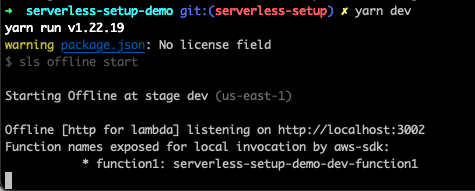
We can now run yarn dev in our project root and get a running server 🎉 yarn dev in our project root and get a running server
But our handler is still in JavaScript. We’ll want to pull in some types and set our tsconfig.json to fix this. For the types, I use aws-lambda and @types/serverless, which can be installed as dev dependencies. For reference, my tsconfig.json looks like this:

{
  "compileOnSave": false,
  "compilerOptions": {
    "rootDir": ".",
    "sourceMap": true,
    "declaration": false,
    "moduleResolution": "NodeNext",
    "emitDecoratorMetadata": true,
    "experimentalDecorators": true,
    "importHelpers": false,
    "target": "ES2018",
    "module": "NodeNext",
    "skipLibCheck": true,
    "skipDefaultLibCheck": true,
    "baseUrl": "."
  },
  "exclude": ["node_modules", "tmp"]
}

And I’ve updated our index.js to index.ts and updated it to read as follows:

import type { APIGatewayProxyHandler } from "aws-lambda";

export const handler: APIGatewayProxyHandler = async (event) => {
  return {
    statusCode: 200,
    body: JSON.stringify(
      {
        message: "Go Serverless v3.0! Your function executed successfully!",
        input: event,
      },
      null,
      2
    ),
  };
};

With this, we now have TypeScript running and can do local development. Our function doesn’t expose an HTTP route making it harder to test so let’s expose it quickly with some configuration:

functions:
  function1:
    handler: index.handler
    events:
      - httpApi:
          path: "/healthcheck"
          method: "get"

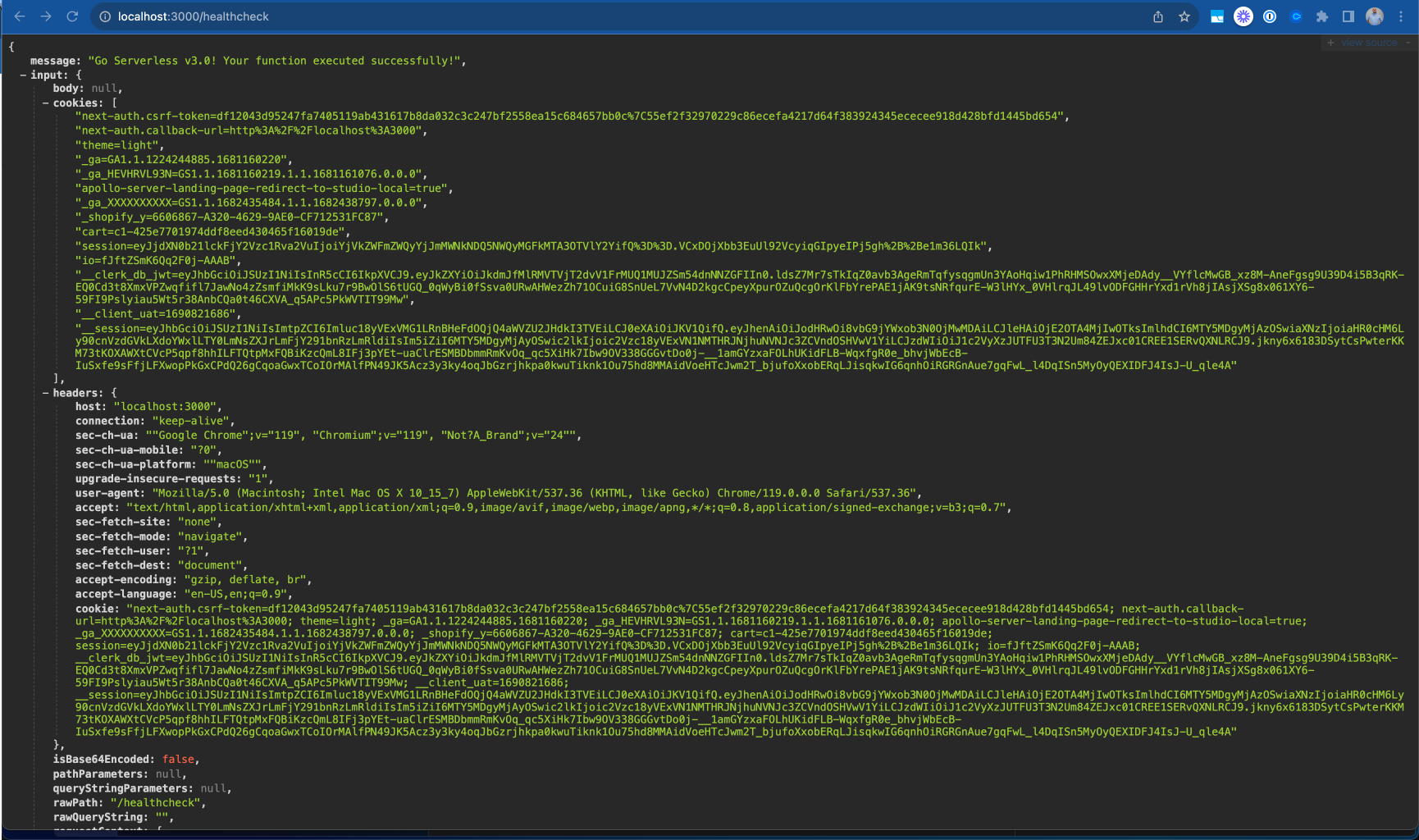
So now we can point our browser to http://localhost:3000/healthcheck and see an output showing our endpoint working! Endpoint healthcheck running
Making the Configuration DX Better

ion DX Better Many developers don’t love YAML because of its strict whitespace rules. Serverless Framework supports JavaScript or JSON configurations out of the box, but we want to know if our configuration is valid as we’re writing it. Luckily, we can now use TypeScript to generate a type-safe configuration file! We’ll need to add 2 more packages to make this work to our dev dependencies:

yarn add -D typescript ts-node

Now, we can change our serverless.yml to serverless.ts and rewrite it with type safety!

import type { Serverless } from "serverless/aws";

const serverlessConfiguration: Serverless = {
  service: "serverless-setup-demo",
  frameworkVersion: "3",
  plugins: ["serverless-esbuild", "serverless-offline"],
  custom: {
    esbuild: {
      bundle: true,
      minify: false,
    },
  },
  provider: {
    name: "aws",
    runtime: "nodejs18.x",
  },
  functions: {
    healthcheck: {
      handler: "index.handler",
      events: [
        {
          httpApi: {
            path: "/healthcheck",
            method: "get",
          },
        },
      ],
    },
  },
};

module.exports = serverlessConfiguration;

Note that we can’t use the export keyword for our configuration and need to use module.exports instead.

Further Optimization

There are a few more settings I like to enable in serverless projects that I want to share with you.

AWS Profile

In the provider section of our configuration, we can set a profile field. This will relate to the AWS configured profile we want to use for this project. I recommend this path if you’re working on multiple projects to avoid deploying to the wrong AWS target. You can run aws configure –profile <PROFILE_NAME> to set this up. The profile name specified should match what you put in your Serverless Configuration.

Individual Packaging

Cold starts are a big problem in serverless computing. We need to optimize to make them as small as possible and one of the best ways is to make our lambda functions as small as possible. By default, serverless framework bundles all functions configured into a single executable that gets uploaded to lambda, but you can actually change that setting by specifying you want each function bundled individually. This is a top-level setting in your serverless configuration and will help reduce your function bundle sizes leading to better performance on cold starts.

package: {
    individually: true,
  },

Memory & Timeout

Lambda charges you based on an intersection of memory usage and function runtime. They have some limits to what you can set these values to but out of the box, the values are 128MB of memory and 3s for timeout. Depending on what you’re doing, you’ll want to adjust these settings. API Gateway has a timeout window of 30s so you won’t be able to exceed that timeout window for HTTP events, but other Lambdas have a 15-minute timeout window on AWS. For memory, you’ll be able to go all the way to 10GB for your functions as needed. I tend to default to 512MB of memory and a 10s timeout window but make sure you base your values on real-world runtime values from your monitoring.

Monitoring

Speaking of monitoring, by default, your logs will go to Cloudwatch but AWS X-Ray is off by default. You can enable this using the tracing configuration and setting the services you want to trace to true for quick debugging.

You can see all these settings in my serverless configuration in the code published to our demo repo: https://github.com/thisdot/blog-demos/tree/main/serverless-setup-demo

Other Notes

Two other important serverless features I want to share aren’t as common in small apps, but if you’re trying to build larger applications, this is important. First is the useDotenv feature which I talk more about in this blog post. Many people still use the serverless-dotenv-plugin which is no longer needed for newer projects with basic needs. The second is if you’re using multiple cloud services. By default, your lambdas may not have permission to access the other resources it needs. You can read more about this in the official serverless documentation about IAM permissions. Conclusion If you’re interested in a new serverless project, these settings should help you get up and running quickly to make your project a great developer experience for you and those working with you. If you want to avoid doing these steps yourself, check out our starter.dev serverless kit to help you get started.

This Dot is a consultancy dedicated to guiding companies through their modernization and digital transformation journeys. Specializing in replatforming, modernizing, and launching new initiatives, we stand out by taking true ownership of your engineering projects.

We love helping teams with projects that have missed their deadlines or helping keep your strategic digital initiatives on course. Check out our case studies and our clients that trust us with their engineering.

You might also like

Implementing Dynamic Types in Docusign Extension Apps cover image

Implementing Dynamic Types in Docusign Extension Apps

Implementing Dynamic Types in Docusign Extension Apps In our previous blog post about Docusign Extension Apps, Advanced Authentication and Onboarding Workflows with Docusign Extension Apps, we touched on how you can extend the OAuth 2 flow to build a more powerful onboarding flow for your Extension Apps. In this blog post, we will continue explaining more advanced patterns in developing Extension Apps. For that reason, we assume at least basic familiarity with how Extension Apps work and ideally some experience developing them. To give a brief recap, Docusign Extension Apps are a powerful way to embed custom logic into Docusign agreement workflows. These apps are lightweight services, typically cloud-hosted, that integrate at specific workflow extension points to perform custom actions, such as data validation, participant input collection, or interaction with third-party services. Each Extension App is configured using a manifest file. This manifest defines metadata such as the app's author, support links, and the list of extension points it uses (these are the locations in the workflow where your app's logic will be executed). The extension points that are relevant for us in the context of this blog post are GetTypeNames and GetTypeDefinitions. These are used by Docusign to retrieve the types supported by the Extension App and their definitions, and to show them in the Maestro UI. In most apps, these types are static and rarely change. However, they don't have to be. They can also be dynamic and change based on certain configurations in the target system that the Extension App is integrating with, or based on the user role assigned to the Maestro administrator on the target system. Static vs. Dynamic Types To explain the difference between static and dynamic types, we'll use the example from our previous blog post, where we integrated with an imaginary task management system called TaskVibe. In the example, our Extension App enabled agreement workflows to communicate with TaskVibe, allowing tasks to be read, created, and updated. Our first approach to implementing the GetTypeNames and GetTypeDefinitions endpoints for the TaskVibe Extension App might look like the following. The GetTypeNames endpoint returns a single record named task: ` Given the type name task, the GetTypeDefinitions endpoint would return the following definition for that type: ` As noted in the Docusign documentation, this endpoint must return a Concerto schema representing the type. For clarity, we've omitted most of the Concerto-specific properties. The above declaration states that we have a task type, and this type has properties that correspond to task fields in TaskVibe, such as record ID, title, description, assignee, and so on. The type definition and its properties, as described above, are static and they never change. A TaskVibe task will always have the same properties, and these are essentially set in stone. Now, imagine a scenario where TaskVibe supports custom properties that are also project-dependent. One project in TaskVibe might follow a typical agile workflow with sprints, and the project manager might want a "Sprint" field in every task within that project. Another project might use a Kanban workflow, where the project manager wants a status field with values like "Backlog," "ToDo," and so on. With static types, we would need to return every possible field from any project as part of the GetTypeDefinitions response, and this introduces new challenges. For example, we might be dealing with hundreds of custom field types, and showing them in the Maestro UI might be too overwhelming for the Maestro administrator. Or we might be returning fields that are simply not usable by the Maestro administrator because they relate to projects the administrator doesn't have access to in TaskVibe. With dynamic types, however, we can support this level of customization. Implementing Dynamic Types When Docusign sends a request to the GetTypeNames endpoint and the types are dynamic, the Extension App has a bit more work than before. As we've mentioned earlier, we can no longer return a generic task type. Instead, we need to look into each of the TaskVibe projects the user has access to, and return the tasks as they are represented under each project, with all the custom fields. (Determining access can usually be done by making a query to a user information endpoint on the target system using the same OAuth 2 token used for other calls.) Once we find the task definitions on TaskVibe, we then need to return them in the response of GetTypeNames, where each type corresponds to a task for the given project. This is a big difference from static types, where we would only return a single, generic task. For example: ` The key point here is that we are now returning one type per task in a TaskVibe project. You can think of this as having a separate class for each type of task, in object-oriented lingo. The type name can be any string you choose, but it needs to be unique in the list, and it needs to contain the minimum information necessary to be able to distinguish it from other task definitions in the list. In our case, we've decided to form the ID by concatenating the string "task_" with the ID of the project on TaskVibe. The implementation of the GetTypeDefinitions endpoint needs to: 1. Extract the project ID from the requested type name. 1. Using the project ID, retrieve the task definition from TaskVibe for that project. This definition specifies which fields are present on the project's tasks, including all custom fields. 1. Once the fields are retrieved, map them to the properties of the Concerto schema. The resulting JSON could look like this (again, many of the Concerto properties have been omitted for clarity): ` Now, type definitions are fully dynamic and project-dependent. Caching of Type Definitions on Docusign Docusign maintains a cache of type definitions after an initial connection. This means that changes made to your integration (particularly when using dynamic types) might not be immediately visible in the Maestro UI. To ensure users see the latest data, it's useful to inform them that they may need to refresh their Docusign connection in the App Center UI if new fields are added to their integrated system (like TaskVibe). As an example, a newly added custom field on a TaskVibe project wouldn't be reflected until this refresh occurs. Conclusion In this blog post, we've explored how to leverage dynamic types within Docusign Extension Apps to create more flexible integrations with external systems. While static types offer simplicity, they can be constraining when working with external systems that offer a high level of customization. We hope that this blog post provides you with some ideas on how you can tackle similar problems in your Extension Apps....

How to set up local cloud environment with LocalStack cover image

How to set up local cloud environment with LocalStack

How to set up local cloud environment with LocalStack Developers enjoy building applications with AWS due to the richness of their solutions to problems. However, testing an AWS application during development without a dedicated AWS account can be challenging. This can slow the development process and potentially lead to unnecessary costs if the AWS account isn't properly managed. This article will examine LocalStack, a development framework for developing and testing AWS applications, how it works, and how to set it up. Assumptions This article assumes you have a basic understanding of: - AWS: Familiarity with S3, CloudFormation, and SQS. - Command Line Interface (CLI): Comfortable running commands in a terminal or command prompt. - JavaScript and Node.js: Basic knowledge of JavaScript and Node.js, as we will write some code to interact with AWS services. - Docker Concepts: Understanding of Docker basics, such as images and containers, since LocalStack runs within a Docker container. What is LocalStack? LocalStack is a cloud service emulator that runs in a single container on your laptop or in your CI environment. With LocalStack, you can run your AWS applications or Lambdas entirely on your local machine without connecting to a remote cloud provider! Whether you are testing complex CDK applications or Terraform configurations or just beginning to learn about AWS, LocalStack simplifies your testing and development workflow, relieving you from the complexity of testing AWS applications. Prerequisite Before setting up LocalStack, ensure you have the following: 1. Docker Installed: LocalStack runs in a Docker container, so you need Docker installed on your machine. You can download and install Docker from here. 2. Node.js and npm: Ensure you have Node.js and npm installed, as we will use a simple Node.js application to test AWS services. You can download Node.js from here. 3. Python: Python is required for installing certain CLI tools that interact with LocalStack. Ensure you have Python 3 installed on your machine. You can download Python from here. Installation In this article, we will use the LocalStack CLI, which is the quickest way to get started with LocalStack. It allows you to start LocalStack from your command line. Localstack spins up a Docker instance, Alternative methods of managing the LocalStack container exist, and you can find them here. To install LocalStack CLI, you can use homebrew by running the following command: ` If you do not use a macOS or you don’t have Brew installed, you can install the CLI using Python: ` To confirm your installation was successful, run the following: ` That should output the installed version of LocalStack. Now you can start LocalStack by running the following command: ` This command will start LocalStack in docker mode, and since it is your first installation, try to pull the LocalStack image. You should see the below on your terminal After the image is downloaded successfully, the docker instance is spun up, and LocalStack is running on your machine on port 4566. Testing AWS Services with LocalStack LocalStack lets you easily test AWS services during development. It supports many AWS products but has some limitations, and not all features are free. Community Version: Free access to core AWS products like S3, SQS, DynamoDB, and Lambda. Pro Version: Access to more AWS products and enhanced features. Check the supported community and pro version resources for more details. We're using the community edition, and the screenshot below shows its supported products. To see the current products supported in the community edition, visit http://localhost:4566/_localstack/health. This article will test AWS CloudFormation and SQS. Before we can start testing, we need to create a simple Node.js app. On your terminal, navigate to the desired folder and run the following command: ` This command will create a package.json file at the root of the directory. Now we need to install aws-sdk. Run the following command: ` With that installed, we can now start testing various services. AWS CloudFormation AWS CloudFormation is a service that allows users to create, update, and delete resources in an AWS account. This service can also automate the process of provisioning and configuring resources. We are going to be using LocalStack to test creating a CloudFormation template. In the root of the folder, create a file called cloud-formation.js. This file will be used to create a CloudFormation stack that will be used to create an S3 bucket. Add the following code to the file: ` In the above code, we import the aws-sdk package, which provides the necessary tools to interact with AWS services. Then, an instance of the AWS.CloudFormation class is created. This instance is configured with: region: The AWS region where the requests are sent. In this case, us-east-1 is the default region for LocalStack. endpoint: The URI to send requests to is set to http://localhost:4566 for LocalStack. You should configure this with environment variables to switch between LocalStack for development and the actual AWS endpoint for production, ensuring the same code can be used in both environments. credentials: The AWS credentials to sign requests with. We are passing new AWS.Credentials("test", "test") The params object defines the parameters needed to create the CloudFormation stack: StackName: The name of the stack. Here, we are using 'test-local-stack'. TemplateBody: A JSON string representing the CloudFormation template. In this example, it defines a single resource, an S3 bucket named TestBucket. The createStack method is called on the CloudFormation client with the params object. This method attempts to create the stack. If there is an error, we log it to the console else, we log the successful data to the console. Now, let’s test the code by running the following command: ` If we run the above command, we should see the JSON response on the terminal. ` AWS SQS The process for testing SQS with LocalStack using the aws-sdk follows the same pattern as above, except that we will introduce another CLI package, awslocal. awslocal is a thin wrapper and a substitute for the standard aws command, enabling you to run AWS CLI commands within the LocalStack environment without specifying the --endpoint-url parameter or a profile. To install awslocal, run the following command on your terminal: ` Next, let’s create an SQS queue using the following command: ` This will create a queue name test-queue and return queueUrl like below: ` Now, in our directory, let’s create a sqs.js file, and inside of it, let’s paste the following code: ` In the above code, an instance of the AWS.SQS class is created. The instance is configured with the same parameters as when creating the CloudFormation. We also created a params object which had the required properties needed to send a SQS message: QueueUrl: The URL of the Amazon SQS queue to which a message is sent. In our case, it will be the URL we got when we created a local SQS. Make sure to manage this in environment variables to switch between LocalStack for development and the actual AWS queue URL for production, ensuring the same code can be used in both environments. MessageBody: The message to send. We call the sendMessage method, passing the params object and a callback that handles error and data, respectively. Let’s run the code using the following command: ` We should get a JSON object in the terminal like the following: ` To test if we can receive the SQS message sent, let’s create a sqs-receive.js. Inside the file, we can copy over the AWS.SQS instance that was created earlier into the file and add the following code: ` Run the code using the following command: ` We should receive a JSON object and should be able to see the previous message we sent ` When you are done with testing, you can shut down LocalStack by running the following command: ` Conclusion In this article, we looked at how to set up a local cloud environment using LocalStack, a powerful tool for developing and testing AWS applications locally. We walked through the installation process of LocalStack and demonstrated how to test AWS services using the AWS SDK, including CloudFormation and SQS. Setting up LocalStack allows you to simulate various AWS services on your local machine, which helps streamline development workflows and improve productivity. Whether you are testing simple configurations or complex deployments, LocalStack provides the environment to ensure your applications work as expected before moving to a production environment. Using LocalStack, you can confidently develop and test your AWS applications without an active AWS account, making it an invaluable tool for developers looking to optimize their development process....

The Dangers of ORMs and How to Avoid Them cover image

The Dangers of ORMs and How to Avoid Them

Background We recently engaged with a client reporting performance issues with their product. It was a legacy ASP .NET application using Entity Framework to connect to a Microsoft SQL Server database. As the title of this post and this information suggest, the misuse of this Object-Relational Mapping (ORM) tool led to these performance issues. Since our blog primarily focuses on JavaScript/TypeScript content, I will leverage TypeORM to share examples that communicate the issues we explored and their fixes, as they are common in most ORM tools. Our Example Data If you're unfamiliar with TypeORM I recommend reading their docs or our other posts on the subject. To give us a variety of data situations, we will leverage a classic e-commerce example using products, product variants, customers, orders, and order line items. Our data will be related as follows: The relationship between customers and products is one we care about, but it is optional as it could be derived from customer->order->order line item->product. The TypeORM entity code would look as follows: ` With this example set, let's explore some common misuse patterns and how to fix them. N + 1 Queries One of ORMs' superpowers is quick access to associated records. For example, we want to get a product and its variants. We have 2 options for writing this operation. The first is to join the table at query time, such as: ` Which resolves to a SQL statement like (mileage varies with the ORM you use): ` The other option is to query the product variants separately, such as: ` This example executes 2 queries. The join operation performs 1 round trip to the database at 200ms, whereas the two operations option performs 2 round trips at 100ms. Depending on the location of your database to your server, the round trip time will impact your decision here on which to use. In this example, the decision to join or not is relatively unimportant and you can implement caching to make this even faster. But let's imagine a different situation/query that we want to run. Let's say we want to fetch a set of orders for a customer and all their order items and the products associated with them. With our ORM, we may want to write the following: ` When written out like this and with our new knowledge of query times, we can see that we'll have the following performance: 100ms * 1 query for orders + 100ms * order items count + 100ms * order items' products count. In the best case, this only takes 100ms, but in the worst case, we're talking about seconds to process all the data. That's an O(1 + N + M) operation! We can eagerly fetch with joins or collection queries based on our entity keys, and our query performance becomes closer to 100ms for orders + 100ms for order line items join + 100ms for product join. In the worst case, we're looking at 300ms or O(1)! Normally, N+1 queries like this aren't so obvious as they're split into multiple helper functions. In other languages' ORMs, some accessors look like property lookups, e.g. order.orderItems. This can be achieved with TypeORM using their lazy loading feature (more below), but we don't recommend this behavior by default. Also, you need to be wary of whether your ORM can be utilized through a template/view that may be looping over entities and fetching related records. In general, if you see a record being looped over and are experiencing slowness, you should verify if you've prefetched the data to avoid N+1 operations, as they can be a major bottleneck for performance. Our above example can be optimized by doing the following: ` Here, we prefetch all the needed order items and products and then index them in a hash table/dictionary to look them up during our loops. This keeps our code with the same readability but improves the performance, as in-memory lookups are constant time and nearly instantaneous. For performance comparison, we'd need to compare it to doing the full operation in the database, but this removes the egregious N+1 operations. Eager v Lazy Loading Another ORM feature to be aware of is eager loading and lazy loading. This implementation varies greatly in different languages and ORMs, so please reference your tool's documentation to confirm its behavior. TypeORM's eager v lazy loading works as follows: - If eager loading is enabled for a field when you fetch a record, the relationship will automatically preload in memory. - If lazy loading is enabled, the relationship is not available by default, and you need to request it via a key accessor that executes a promise. - If neither is enabled, it defaults to the behavior ascribed above when we explained handling N+1 queries. Sometimes, you don't want these relationships to be preloaded as you don't use the data. This behavior should not be used unless you have a set of relations that are always loaded together. In our example, products likely will always need product variants loaded, so this is a safe eager load, but eager loading order items on orders wouldn't always be used and can be expensive. You also need to be aware of the nuances of your ORM. With our original problem, we had an operation that looked like product.productVariants.insert({ … }). If you read more on Entity Framework's handling of eager v lazy loading, you'll learn that in this example, the product variants for the product are loaded into memory first and then the insert into the database happens. Loading the product variants into memory is unnecessary. A product with 100s (if not 1000s) of variants can get especially expensive. This was the biggest offender in our client's code base, so flipping the query to include the ID in the insert operation and bypassing the relationship saved us _seconds_ in performance. Database Field Performance Issues Another issue in the project was loading records with certain data types in fields. Specifically, the text type. The text type can be used to store arbitrarily long strings like blog post content or JSON blobs in the absence of a JSON type. Most databases use a technique that stores text fields off rows, which requires a special file system lookup operation to fetch that data. This can make a typical database lookup that would take 100ms under normal conditions to take 200ms. If you combine this problem with some of the N+1 and eager loading problems we've mentioned, this can lead to seconds, if not minutes, of query slowdown. For these, you should consider not including the column by default as part of your ORM. TypeORM allows for this via their hidden columns feature. In this example, for our product description, we could change the definition to be: ` This would allow us to query products without descriptions quickly. If we needed to include the product description in an operation, we'd have to use the addSelect function to our query to include that data in our result like: ` This is an optimization you should be wary of making in existing systems but one worth considering to improve performance, especially for data reports. Alternatively, you could optimize a query using the select method to limit the fields returned to those you need. Database v. In-Memory Fetching Going back to one of our earlier examples, we wrote the following: ` This involves loading our data in memory and then using system memory to perform a group-by operation. Our database could have also returned this result grouped. We opted to perform this operation like this because it made fetching the order item IDs easier. This takes some performance challenges away from our database and puts the performance effort on our servers. Depending on your database and other system constraints, this is a trade-off, so do some benchmarking to confirm your best options here. This example is not too bad, but let's say we wanted to get all the orders for a customer with an item that cost more than $20. Your first inclination might be to use your ORM to fetch all the orders and their items and then filter that operation in memory using JavaScript's filter method. In this case, you're loading data you don't need into memory. This is a time to leverage the database more. We could write this query as follows in SQL: ` This just loads the orders that had the data that matched our condition. We could write this as: ` We constrained this to a single customer, but if it were for a set of customers, it could be significantly faster than loading all the data into memory. If our server has memory limitations, this is a good concern to be aware of when optimizing for performance. We noticed a few instances on our client's implementation where the filter operations were applied in functions that appeared to run the operation in the database but were running the operation in memory, so this was preloading more data into memory than needed on a memory-constrained server. Refer to your ORM manual to avoid this type of performance hit. Lack of Indexes The final issue we encountered was a lack of indexes on key lookups. Some ORMs do not support defining indexes in code and are manually applied to databases. These tend not to be documented, so an out-of-sync issue can happen in different environments. To avoid this challenge, we prefer ORMs that support indexes in code like TypeORM. In our last example, we filtered on the cost of an order item, but the cost field does not contain an index. This leads to a full table scan of our data collection filtered by the customer. The query cost can be very expensive if a customer has thousands of orders. Adding the index can make our query super fast, but it comes at a cost. Each new index makes writing to the database slower and can exponentially increase the size of our database needs. You should only add indexes to fields that you are querying against regularly. Again, be sure you can notate these indexes in code so they can be replicated across environments easily. In our client's system, the previous developer did not include indexes in the code, so we retroactively added the database indexes to the codebase. We recommend using your database's recommended tool for inspection to determine what indexes are in place and keep these systems in sync at all times. Conclusion ORMs can be an amazing tool to help you and your teams build applications quickly. However, they have gotchas for performance that you should be aware of and can identify while developing or during code reviews. These are some of the most common examples I could think of for best practices. When you hear the horror stories about ORMs, these are some of the challenges typically discussed. I'm sure there are more, though. What are some that you know? Let us know!...

AI Is Speeding Up Development. But Where Are the New Bottlenecks? cover image

AI Is Speeding Up Development. But Where Are the New Bottlenecks?

AI is accelerating development, but it’s also exposing everything else that’s broken. At the Leadership Exchange, leaders unpacked how AI is reshaping the SDLC and what organizations need to address beyond just coding to make adoption successful. Moderated by Rob Ocel, VP of Innovation at This Dot Labs, the panel featured Itai Gerchikov at Anthropic and Harald Kirschner, Principal Product Manager for GitHub Copilot & VS Code at Microsoft. Panelists explored the current state of AI adoption across the software development lifecycle and shared practical insights into how organizations can effectively integrate AI tools. Panelists discussed how companies are investing in AI tools, skills, and managed competency programs to support developers. While AI can dramatically accelerate coding, the panel emphasized that adoption affects every stage of the SDLC. Bottlenecks now appear in testing, DevOps, product delivery, and marketing as AI speeds up development. Organizations that address technical debt and process inefficiencies are better positioned to extract maximum value from AI tools. The conversation also focused on opportunities and risks. Security, governance, and workforce education were highlighted as critical factors for adoption. Panelists stressed that AI initiatives should be aligned with broader business goals rather than pursued in isolation. They noted that companies experimenting at the cutting edge need to consider organizational readiness just as carefully as technical capabilities. Panelists also explored how leading organizations are navigating the early stages of adoption. Those ahead of the curve are using structured experimentation, prioritizing process improvements, and continuously evaluating outcomes to refine their AI strategies. Learning from these early adopters allows other organizations to anticipate emerging trends and prepare for the next phase of AI adoption rather than simply replicating past approaches. Key Takeaways - Investing in AI skills and tools should be done thoughtfully, with clear alignment to business objectives. - Examining the full SDLC helps identify bottlenecks that AI may accelerate or expose. - Organizations can gain a competitive advantage by learning from early adopters and planning for where AI adoption is heading. AI adoption is not just a technical initiative; it is a strategic transformation that requires attention to people, process, and technology. Organizations that balance innovation with operational discipline will be best positioned to capture the full potential of AI across the software lifecycle. Seeing similar challenges in your own SDLC? Let’s compare notes. Join us at an upcoming Leadership Exchange or reach out to continue the conversation. Tracy can be reached at tlee@thisdot.co....

Let's innovate together!

We're ready to be your trusted technical partners in your digital innovation journey.

Whether it's modernization or custom software solutions, our team of experts can guide you through best practices and how to build scalable, performant software that lasts.

Prefer email? hi@thisdot.co