
Skip to content

Creating Custom GitHub Actions

This article was written over 18 months ago and may contain information that is out of date. Some content may be relevant but please refer to the relevant official documentation or available resources for the latest information.

Since its generally available release in Nov 2019, Github Actions has seen an incredible increase in adoptions.

Github Actions allows you to automate, customize and execute your software development workflows.

In this article, we will learn how to create our first custom Github Actions using Typescript. We will also show some of the best practices, suggested by Github, for publishing and versioning our actions.

Types of Actions

There two types of publishable actions: Javascript and Docker actions.

Docker containers provide a more consistent and reliable work unit than Javascript actions because they package the environment with the Github Actions code. They are ideal for actions that must run in a specific configuration.

On the other hand, JavaScript actions are faster than Docker actions since they run directly on a runner machine and do not have to worry about building the Docker image every time. Javascript actions can run in Windows, Mac, and Linux, while Docker actions can just run in Linux. But most importantly (for the purpose of this article), Javascript actions are easier to write.

There is a third kind of Action: the Composite run steps Actions. These help you reuse code inside your project workflows, and hide complexity when you do not want to publish the Action to the marketplace.

You can quickly learn how to create Composite run step Actions in this video, or by reading through the docs.

The Action

For this article, we will be creating a simple Javascript Action.

We will use the Typescript Action template to simplify our setup, and use TypeScript out of the box. The objective is to walk over the whole lifecycle of creating and publishing a custom GitHub Action.

We will be creating a simple action that counts the Lines of Code (LOC) of a given type of file, and throws if the sum of LOC exceeds a given threshold.

Keep in mind that the source code is not production-ready and should only be used for learning.

The Action will receive three params:

  • fileOrFolderToProcess (optional): The file or folder to process
  • filesAndFoldersToIgnore (optional): A list of directories to ignore. It supports glob patterns.
  • maxCount (required): The maximum number of LOC for the sum of files.

The Action recursively iterates over all files under the folder to calculate the total amount of Lines of Code for our project.

During the process, the Actions will skip the files and folders marked to ignore, and at the end, if the max count is reached, we throw an error.

Additionally, we will set the total LOC in an Action output no matter the result of the Action.

Setting up the Environment

JavaScript Github Actions are not significantly different from any other Javascript project. We will set up some minimal configuration, but you should feel free to add your favorite workflow.

Let us start by creating the repository. As mentioned, we will use the Typescript Github Actions template, which will provide some basic configuration for us.

We start by visiting https://github.com/actions/typescript-action. We should see something like this:

typesscript-template-gh-actions

The first thing we need to do is add a start to the repo :). Once that is completed, we will then click on the "Use this template" button.

We are now in a regular "create new repository" page that we must fill.

Create a new repository page of GitHub

We can then create our new repository by clicking the "Create repository from template" button.

Excellent, now our repository is created. Let us take a look at what this template has provided for us.
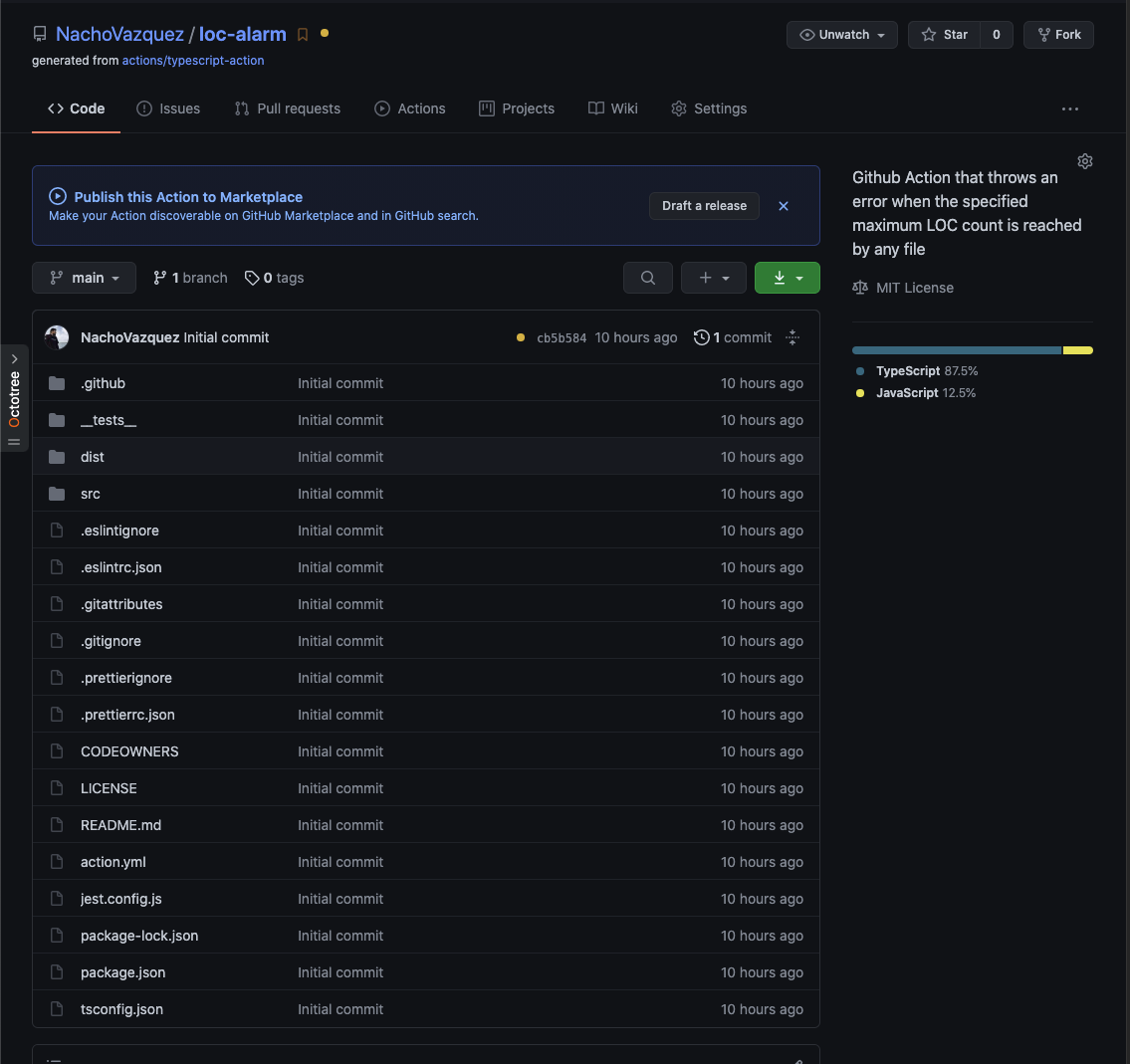
Freshly Created Repository using the TypeScript Template

The first thing to notice is that Github recognizes that we are in a GitHub Actions source code. Because of that, GitHub provides a contextual button to start releasing our Action.

Publish to marketplace button

The file that allows this integration is the action.yml file. That is the action metadata container, including the name, description, inputs, and outputs. It is also where we will reference the entry point .js for our Action.

Action.yml with default data

The mentioned entry point will be located in the dist folder, and the files contained there is the result of building our Typescript files.

Important! Github uses the dist folder to run the Actions. Unlike other repositories, this build bundle MUST be included in the repository, and should not be ignored.

Our source code lives in the source folder. The main.ts is what would be compiled to our Action entry point index.js. There is where most of our work will be focused.

Additional files and configurations

In addition to the main files, the TypeScript template also adds configuration files for Jest, TypeScript, Prettier and ESLint.

A Readme template and a CODEOWNERS file are included, along with a LICENSE.

Lastly, it will also provide us with a GitHub CI YAML file with everything we need to e2e test our Action.

ci yaml file with pipeline steps

Final steps

To conclude our setup walkthrough, let us clone the repository. I will be using mine, but you should replace the repository with yours.

git clone https://github.com/NachoVazquez/loc-alarm.git

Navigate to the cloned project folder, and install the dependencies.

npm i

Now we are ready to start implementing our Action.

The implementation

First we must configure our action.yml file and define our API.

The metadata

The first three properties are mostly visual metadata for the Workspace, and the Actions tab.

name: 'Lines Of Code Alert'
description: 'Github Action that throws an error when the specified maximum LOC count is reached by any file'
author: 'Nacho Vazquez -- This Dot, Inc'

The name property is the name of your Action. GitHub displays the name in the Actions tab to help visually identify actions in each job.

GitHub will also use the name, the description, and the author of the Action to inform users about the Action goal in the Actions Marketplace.

Ensure a short and precise description; Doing so will help the users of the Action quickly identify the problem that the Action is solving.

Next, we define our inputs. Like we did with the Action, we should write a short and precise description to avoid confusion about the usage of each input variable.

inputs:
  fileOrFolderToProcess:
    required: false
    description: 'The file or folder to process'
    default: '.'
  filesAndFoldersToIgnore:
    required: false
    description: 'A list of directories to ignore. Supports glob patterns.'
    default: '["node_modules", ".git", "dist", ".github"]'
  maxCount:
    required: true
    description: 'The maximum number of LOC for the sum of files'

We will mark our inputs as required or optional, according to what we already specified when describing our plans for the Action.

The default values help provide pre-configured data to our Action.

As with the inputs, we must define the outputs.

outputs:
  locs:
    description: 'The amount of LOC of your project without comments and empty lines'

Actions that run later in a workflow can use the output data set in our Action run.

If you don't declare an output in your action metadata file, you can still set outputs and use them in a workflow.

However, it would not be evident for a user searching for the Action in the Marketplace since GitHub cannot detect outputs that are not defined in the metadata file.

Finally, we define the application running the Action and the entry point for the Action itself.

runs:
  using: 'node12'
  main: 'dist/index.js'

Now, let's see everything together so we can appreciate the big picture of our Action metadata.

name: 'Lines Of Code Alert'
description: 'Github Action that throws an error when the specified maximum LOC count is reached by any file'
author: 'Nacho Vazquez -- This Dot, Inc'
inputs:
  fileOrFolderToProcess:
    required: false
    description: 'The file or folder to process'
    default: '.'
  filesAndFoldersToIgnore:
    required: false
    description: 'A list of directories to ignore. Supports glob patterns.'
    default: '["node_modules", ".git", "dist", ".github"]'
  maxCount:
    required: true
    description: 'The maximum number of LOC for the sum of files'
outputs:
  locs:
    description: 'The amount of LOC of your project without comments and empty lines'
runs:
  using: 'node12'
  main: 'dist/index.js'

The Code

Now that we have defined all our metadata and made GitHub happy, we can start coding our Action.

Our code entry point is located at src/maint.ts. Let's open the file in our favorite IDE and start coding.

Let's clean all the unnecessary code that the template created for us. We will, however, keep the core tools import.

import * as core from '@actions/core'

The core library will give us all the tools we need to interact with the inputs and outputs, force the step to fail, add debugging information, and much more. Discover all the tools provided by the Github Actions Toolkit.

After cleaning up all of the example code, the initial step would be extracting and transforming our inputs to a proper form.

// extract inputs
const filesAndFoldersToIgnore = JSON.parse(
  core.getInput('filesAndFoldersToIgnore')
)
const maxCount: number = +core.getInput('maxCount')
const fileOrFolderToProcess: string = core.getInput('fileOrFolderToProcess')

With our inputs ready, we need to start thinking about counting our LOC while enforcing the input restrictions.

Luckily there is a couple of libraries that can do this for us. For this example, we will be using node-sloc, but feel free to use any other.

Go on and install the dependency using npm or any package manager that you prefer.

npm install --save node-sloc

Import the library.

import sloc from 'node-sloc'

And the rest of the implementation is straightforward.

// calculate loc stats
const stats = await sloc({
  path: fileOrFolderToProcess,
  extensions: ['ts', 'html', 'css', 'scss'],
  ignorePaths: filesAndFoldersToIgnore,
  ignoreDefault: true
})

Great! We have our LOC information ready. Let's use it to set the output defined in the metadata before doing anything else.

// set the output of the action
core.setOutput('locs', stats?.sloc)

Additionally, we will also provide debuggable data. Notice that debug information is only available if the repository owner activated debug logging capabilities.

// debug information is only available when enabling debug logging https://docs.github.com/en/actions/managing-workflow-runs/enabling-debug-logging
core.debug(`LOC ${stats?.sloc?.toString() || ''}`)
core.debug(`Max Count ${maxCount.toString() || ''}`)

Here is the link if you are interested in debugging the Action yourself.

Finally, verify that the count of the LOC is not exceeding the threshold.

// verify that locs threshold is not exceeded
if ((stats?.sloc || 0) > maxCount) {
  core.debug('Threshold exceeded')
  throw new Error(
    `The total amount of lines exceeds the maximum allowed.
     Total Amount: ${stats?.sloc}
     Max Count: ${maxCount}`
  )
}

If the threshold is exceeded, we use the core.setFailed, to make this action step fail and, therefore, the entire pipeline fails.

catch (error) {
  core.setFailed(error.message)
}

Excellent! We just finished our Action. Now we have to make it available for everyone.

But first, lets configure our CI to perform an e2e test of our Action.

Go to the file .github/workflows/*.yml. I called mine ci.yml but you can use whatever name makes sense to you.

name: 'loc-alarm CI'

on: # rebuild any PRs and main branch changes
  pull_request:
  push:
    branches:
      - main

jobs:
  build: # make sure build/ci work properly
    runs-on: ubuntu-latest
    steps:
      - uses: actions/checkout@v2
      - run: npm install
      - run: npm run build

  e2e:
    runs-on: ubuntu-latest
    steps:
      - uses: actions/checkout@v2
      - uses: ./
        id: e2e
        with:
          maxCount: '1000'
      # Use the output from the `e2e` step
      - name: Get the LOC
        run: echo "The project has ${{ steps.e2e.outputs.locs }} lines of code"

Here, we are triggering the pipeline whenever a pull request is created with base branch main or the main branch itself is pushed.

Then, we run the base setup steps, like installing the packages, and building the action to verify that everything works as it should.

Finally, we run e2e jobs that will test the actions as we were running it in an external application.

That's it! Now we can publish our Action with confidence.

Publish and versioning

Something you must not forget before any release is to build and package your Action.

npm run build && npm run package

These commands will compile your TypeScript and JavaScript into a single file bundle on the dist folder.

With that ready, we can commit our changes to the main branch, and push to origin.

Go back to your browser and navigate to the Action repository.

First, go to the Actions tab and verify that our pipeline is green and the Action is working as expected.

Action Pipeline green

After that check, go back to the "Code" tab, the home route of our repository.

Code tab loc-alarm repo

Remember the "Draft a release" button? Well, it is time to click it.

We are now on the releases page. This is where our first release will be created.

release action page

Click on the terms and conditions link, and agree with the terms to publish your actions.

Term and conditions
terms and conditions

Check the "Publish this Action to the Github Marketplace" input, and fill in the rest of the information.

fill release information

You can mark this as pre-release if you want to experiment with the Action before inviting users to use it.

pre release check

And that's it! Just click the "Publish release" button.

First release

Tada! Click in the marketplace button to see how your Action looks!

marketplace

After the first release is out, you will probably start adding features or fixing bugs. There are some best practices that you should follow while maintaining your versioning.

Use this guide to keep your version under control. But the main idea is that the major tag- v1 for instance- should always be referencing the latest tag with the same major version.

This means that if we release v1.9.3 we should update v1 to the same commit as v1.9.3.

Our Action is ready. The obvious next step is to test it with a real application.

Using the Action

Now it is time to test our Action, and see how it works in the wild.

We are going to use our Plugin Architecture example application. If you have read that article yet, here is the link.

The first thing we need to do is create a new git branch.

After that, we create our ci.yml file under .github/workflows.

And we add the following pipeline code.

name: Plugin Architecture CI

on:
  pull_request:
  push:
    branches:
      - main

jobs:
  loc:
    runs-on: ubuntu-latest
    steps:
      - uses: actions/checkout@v2
      - uses: NachoVazquez/loc-alarm@v1
        id: loc-alert
        with:
          maxCount: 1000
      - name: Print the LOC
        run: echo "The project has ${{ steps.loc-alert.outputs.locs }} lines of code."

Basically, we are just triggering this Action when a PR is created using main as the base branch, or if we push directly to main.

Then, we add a single job that will checkout the PR branch and use our Action with a max count of 200.

Finally, we print the value of our output variable.

Save, commit, and push.

Create your PR, go to the check tab, and see the result of your effort.

create pr

Great! We have our first failing custom GitHub action.

failing ci

Now, 200 is a bit strict. Maybe 1000 lines of code are more appropriate.

Adjust your step, commit, and push to see your pipeline green and passing.

successful pipeline

How great is that!?

Conclusion

Writing Custom GitHub Actions using JavaScript and TypeScript is really easy, but it can seem challenging when we are not familiar with the basics.

We covered an end-to-end tutorial about creating, implementing, publishing, and testing your Custom GitHub Action.

This is really just the beginning. There are unlimited possibilities to what you can create using GitHub Actions.

Use what you learned today to make the community a better place with the tools you can create for everyone.

This Dot is a consultancy dedicated to guiding companies through their modernization and digital transformation journeys. Specializing in replatforming, modernizing, and launching new initiatives, we stand out by taking true ownership of your engineering projects.

We love helping teams with projects that have missed their deadlines or helping keep your strategic digital initiatives on course. Check out our case studies and our clients that trust us with their engineering.

You might also like

“Music and code have a lot in common,” freeCodeCamp’s Jessica Wilkins on what the tech community is doing right to onboard new software engineers cover image

“Music and code have a lot in common,” freeCodeCamp’s Jessica Wilkins on what the tech community is doing right to onboard new software engineers

Before she was a software developer at freeCodeCamp, Jessica Wilkins was a classically trained clarinetist performing across the country. Her days were filled with rehearsals, concerts, and teaching, and she hadn’t considered a tech career until the world changed in 2020. > “When the pandemic hit, most of my gigs were canceled,” she says. “I suddenly had time on my hands and an idea for a site I wanted to build.” That site, a tribute to Black musicians in classical and jazz music, turned into much more than a personal project. It opened the door to a whole new career where her creative instincts and curiosity could thrive just as much as they had in music. Now at freeCodeCamp, Jessica maintains and develops the very JavaScript curriculum that has helped her and millions of developers around the world. We spoke with Jessica about her advice for JavaScript learners, why musicians make great developers, and how inclusive communities are helping more women thrive in tech. Jessica’s Top 3 JavaScript Skill Picks for 2025 If you ask Jessica what it takes to succeed as a JavaScript developer in 2025, she won’t point you straight to the newest library or trend. Instead, she lists three skills that sound simple, but take real time to build: > “Learning how to ask questions and research when you get stuck. Learning how to read error messages. And having a strong foundation in the fundamentals” She says those skills don’t come from shortcuts or shiny tools. They come from building. > “Start with small projects and keep building,” she says. “Books like You Don’t Know JS help you understand the theory, but experience comes from writing and shipping code. You learn a lot by doing.” And don’t forget the people around you. > “Meetups and conferences are amazing,” she adds. “You’ll pick up things faster, get feedback, and make friends who are learning alongside you.” Why So Many Musicians End Up in Tech A musical past like Jessica’s isn’t unheard of in the JavaScript industry. In fact, she’s noticed a surprising number of musicians making the leap into software. > “I think it’s because music and code have a lot in common,” she says. “They both require creativity, pattern recognition, problem-solving… and you can really get into flow when you’re deep in either one.” That crossover between artistry and logic feels like home to people who’ve lived in both worlds. What the Tech Community Is Getting Right Jessica has seen both the challenges and the wins when it comes to supporting women in tech. > “There’s still a lot of toxicity in some corners,” she says. “But the communities that are doing it right—like Women Who Code, Women in Tech, and Virtual Coffee—create safe, supportive spaces to grow and share experiences.” She believes those spaces aren’t just helpful, but they’re essential. > “Having a network makes a huge difference, especially early in your career.” What’s Next for Jessica Wilkins? With a catalog of published articles, open-source projects under her belt, and a growing audience of devs following her journey, Jessica is just getting started. She’s still writing. Still mentoring. Still building. And still proving that creativity doesn’t stop at the orchestra pit—it just finds a new stage. Follow Jessica Wilkins on X and Linkedin to keep up with her work in tech, her musical roots, and whatever she’s building next. Sticker illustration by Jacob Ashley....

The Future of Dates in JavaScript: Introducing Temporal cover image

The Future of Dates in JavaScript: Introducing Temporal

The Future of Dates in JavaScript: Introducing Temporal What is Temporaal? Temporal is a proposal currently at stage 3 of the TC39 process. It's expected to revolutionize how we handle dates in JavaScript, which has always been a challenging aspect of the language. But what does it mean that it's at stage 3 of the process? * The specification is complete * It has been reviewed * It's unlikely to change significantly at this point Key Features of Temporal Temporal introduces a new global object with a fresh API. Here are some important things to know about Temporal: 1. All Temporal objects are immutable 2. They're represented in local calendar systems, but can be converted 3. Time values use 24-hour clocks 4. Leap seconds aren't represented Why Do We Need Temporal? The current Date object in JavaScript has several limitations: * No support for time zones other than the user's local time and UTC * Date objects can be mutated * Unpredictable behavior * No support for calendars other than Gregorian * Daylight savings time issues While some of these have workarounds, not all can be fixed with the current Date implementation. Let's see some useful examples where Temporal will improve our lives: Some Examples Creating a day without a time zone is impossible using Date, it also adds time beyond the date. Temporal introduces PlainDate to overcome this. ` But what if we want to add timezone information? Then we have ZonedDateTime for this purpose. The timezone must be added in this case, as it also allows a lot of flexibility when creating dates. ` Temporal is very useful when manipulating and displaying the dates in different time zones. ` Let's try some more things that are currently difficult or lead to unexpected behavior using the Date object. Operations like adding days or minutes can lead to inconsistent results. However, Temporal makes these operations easier and consistent. ` Another interesting feature of Temporal is the concept of Duration, which is the difference between two time points. We can use these durations, along with dates, for arithmetic operations involving dates and times. Note that Durations are serialized using the ISO 8601 duration format ` Temporal Objects We've already seen some of the objects that Temporal exposes. Here's a more comprehensive list. * Temporal * Temporal.Duration` * Temporal.Instant * Temporal.Now * Temporal.PlainDate * Temporal.PlainDateTime * Temporal.PlainMonthDay * Temporal.PlainTime * Temporal.PlainYearMonth * Temporal.ZonedDateTime Try Temporal Today If you want to test Temporal now, there's a polyfill available. You can install it using: ` Note that this doesn't install a global Temporal object as expected in the final release, but it provides most of the Temporal implementation for testing purposes. Conclusion Working with dates in JavaScript has always been a bit of a mess. Between weird quirks in the Date object, juggling time zones, and trying to do simple things like “add a day,” it’s way too easy to introduce bugs. Temporal is finally fixing that. It gives us a clear, consistent, and powerful way to work with dates and times. If you’ve ever struggled with JavaScript dates (and who hasn’t?), Temporal is definitely worth checking out....

VSCode Keyboard Proficiency cover image

VSCode Keyboard Proficiency

Introduction The tools used in the programming craft are varied and the ones developers use depend on the kind of work they are doing. However, two of these tools are omnipresent: the keyboard and the text editor. As such, learning how to use these tools effectively is crucial. This blog is an introductory guide on using and configuring VSCode (one of the most popular IDEs among programmers) to maximize your productivity and proficiency with the keyboard. Here are some notes about what you should expect from it: - We will be using a fresh installation of VSCode for this guide. - We will be configuring the keybindings for the Mac keyboard. It is up to you to set it up to your liking in your OS of choice. - This guide is not a comprehensive guide to VSCode, but an introduction to maximizing keyboard usage in VSCode. That being said, let's get started! The Keyboard Shortcuts Editor The first command we will learn is the command to open the keyboard shortcuts editor. The command's name is workbench.action.openGlobalKeybindings, and it is bound to Cmd+K Cmd+S by default. Let's try it. Press Cmd+K Cmd+S, and you should see the keyboard shortcuts editor open up. This is where you can modify the default keybindings of VSCode. This command opens the keyboard shortcuts editor, which is a JSON file that contains all of the keybindings that are currently in effect. The keybinding is the key combination that triggers the command. The command is the name of the action performed when the keybinding is pressed. The When column contains the conditions that must be met for the keybinding to be active. Finally, the Source column contains the extension's name that defines the keybinding. If an extension includes the keybinding, the source will be the extension's name. If VSCode determines the keybinding, the source will be Default. Movements Cursor movements are the most common actions we perform when reading or writing code. The cursor movement could be done in a single file between multiple files, between consecutive lines, or from one line to another located 100 lines away. This is the skill you will use the most and, therefore, where we will lose the most time if we use the mouse. The following are the most common ways to move the cursor around the text. Single unit cursor movement -- Arrow Keys The beginning of this journey starts with the arrow keys. We are most tempted to use this all the time since it is the most intuitive of the movements with nearly zero mental overload. However, the arrow keys are not the actual name of this movement. We are actually referring to four movements: cursorLeft, cursorRight, cursorUp, and cursorDown. These are the commands that are bound to the arrow keys by default. Horizontal Movement. Word cursor movement Although moving the cursor one character at a time was not a big deal for that contrived example, let's see what happens if we try to hit the 🎯 on a long line. Please give me the mouse! Just kidding, we are not going to use the mouse. We are locked with the keyboard, but even I was tempted. Then, how do we get faster? We can use the word cursor movements to improve our efficiency. The main two cursor word movements are the cursorWordLeft and cursorWordEndRight; they will allow us to move one word at a time. By default, movements are bound to Option+Left and Option+Right, respectively, but again feel free to customize everything to your liking. As we can see on the Word Cursor Movements Configs image, we can use many more word movements. Feel free to explore them and see what they do. Ok, no more talk, let's show our new movements. That's better. Our speed of moving around in a line has improved significantly. There are, however, some observations to make. Firstly, we move nearly to the end of the "visible" line one word at a time. If we started from the end of the line, we would have to make fewer movements. Secondly, we have no idea where the line ends because it overflows out of the editor's viewport. To fix the line overflow, we need to change a configuration setting. The setting is editor.wordWrap, which is set to off by default. Much better. Now we can actually tell where the cursor is at any moment. Horizontal Movement. Line start/end cursor movement Now that we can visualize where the cursor can be placed at any moment in the line, we can optimize our previous movement by moving the cursor to the end of the line before reaching the 🎯. We will use the cursorEnd and cursorHome commands. By default they are bound to Cmd+Right and Cmd+Left respectively. Yes, that was a lot better. We can now move the cursor to the end of the line and then move one word at a time to the 🎯. However, we know that's not really the end of the line. That's the end of the editor viewport. We have some movements if we really need to move to the end or start of the line. The cursorLineEnd and cursorLineStart commands do exactly that. They are bound to Ctrl+A and Ctrl+E, respectively. Let's see it in action. I don't use these movements very often because I spend most of my time editing code which is usually formatted to fit the editor viewport width. For that reason, I have overridden one of these commands with something more valuable to me that I'll show you later. Horizontal Movement. Bonus and Sneak Peek We have covered so far the most common horizontal movements. However, there is another helpful movement that I'll cover next, but I guess I can tell you something about it now. The workbench.action.gotoLine lets you move the cursor to a specific line, and a particular character or column. Alright, that covers up the horizontal movements. Now practice them until you can do them without thinking. Vertical Movement. Lines cursor movement Horizontal movements are great, but after wrapping your lines and formatting the code, the text will fit the editor's viewport making vertical movements the most common type. The most basic form of vertical movement is the cursorUp and cursorDown commands using the arrow keys, as shown in the first movement section. But as we have seen before, this is very inefficient. Don't believe me? I'll show you. Let's take this example to the ThisDot Open Source repository. Ugly! And that's just a few lines. Imagine if we had to move the cursor 100 lines up or down. We would be here all day. Luckily for us, there are some more efficient ways to move the cursor up and down. Vertical Movement. Top and Bottom of the file As with the line start/end movements, we can move the cursor to the top or bottom of the file. The commands are cursorTop and cursorBottom and by default they are bound to Cmd+UpArrow and Cmd+DownArrow respectively. These are primarily useful when you know that the line you are looking for is near the top or bottom of the file. But in long files, this is not always the case. Vertical Movement. Go to Line Until now, we still don't have an efficient way to move across lines. Lucky for us, we can move the cursor to any line in the file with the global goto line movement. The command is workbench.action.gotoLine, and is bound to Ctrl+G by default. With this movement, we can move the cursor to any line in the file in just a few keystrokes. We can also move the cursor to a specific character or column on that line. And we can further optimize. The workbench.action.gotoLine command requires us to type the global line number. For long files with hundreds or thousands of lines, the number of digits to type increases along with the frequency of typos. Additionally, we must look carefully at the line number before moving the cursor to the line. Vertical Movement. Go to relative line Relative line numbers and a relative goto movement would solve these problems. However, the relative goto feature is not available out of the box in VS Code, but we can add it with the Relative Goto extension. This extension does a few things for us: It turns on the relative numbers setting. And it adds a keybinding called relative-goto.goto, bound to Cmd+G by default. But first, we need to change the default keybinding. The reason is that the Cmd+G keybinding is already used by the editor.action.nextMatchFindAction command. I like to use Cmd+L for this command because it is an excellent mnemonic for Line. Before anything, yes, I used the mouse to change the keybinding. I know I'm a terrible person. With that out of the way, let's see how it works. Yes, much better! We have reduced the overhead of moving the cursor to a global line. And if you notice, we can move to a previous line using negative numbers. Hydration Pause -- Selection Let's take a break from our keyboard mastery path and use this pause to cover something intrinsically related to cursor movement: text selection. All the movements that we have covered so far have a selection counterpart. For example, the cursorLeftSelect command selects the character to the left of the cursor. The cursorWordEndRightSelect command selects the word to the right of the cursor. And so on. The relative goto movement also has its selection counterpart. It is the relative-goto.select command. The command is bound to Cmd+S, an apparent mistake because it collides with the save keybinding. In my case, I have changed it to Cmd+Option+L. Why not Cmd+Shift+L? This is because I use that keybinding for the expandLineSelection command. Let's see them all in action to make clear what I mean. There are many more selection movements, but that clip exemplifies what's possible. Vertical Movement. Scrolling Editor Often, we need to go to a line outside our current page. We could try to find a word (Cmd+f) that we know is in that line. Or we could try to go directly to a symbol near that line if we know the symbol's name (Cmd+Shift+O). But we likely won't know where the line is, and will scroll to find it. USING THE MOUSE. Well, not anymore. Scrolling is also possible using the keyboard! We can use one line scroll commands by using scrollLineUp and scrollLineDown bound to Ctrl+PageUp and Ctrl+PageDown by default. Additionally, we can use one page scroll commands by using scrollPageUp and scrollPageDown bound to Cmd+PageUp and Cmd+PageDown by default. Fantastic, with these movements, we are now mouse free when scrolling through the file. However, when scrolling large files, the relative line goto will have the same problems the global line number goto had. A tool to solve this issue is the Scroll with Stationary Cursor extension. This extension adds two new keybindings that keep the cursor static to the editor viewport while scrolling. The commands are extension.scrollWithCursorUp and extension.scrollWithCursorDown bound to Ctrl+Option+Cmd+UpArrow and Ctrl+Option+Cmd+DownArrow by default. Since it is my primary way of scrolling the editor, I have changed the keybinding to Ctrl+PageUp and Ctrl+PageDown, replacing the regular line scroll commands. The last scrolling trick is the Scroll to Cursor extension. This extension adds a new command called scrollToCursor bound to Ctrl+L by default. This command will scroll the editor, so the cursor is near the top of the viewport. That's all for scrolling; make sure that you explore all the other extensions and keybindings that VS Code provides for scrolling. There are many more that I didn't cover here. Multiple Groups Movement So far, all the examples we have seen use a single group or panel. To maximize my efficiency, I usually work with two or three VSCode groups side by side. The next set of movements will focus on interacting with VSCode groups. For simplicity, we will focus on two vertical groups, but the same concepts and techniques will apply to having several vertical or horizontal groups. The easiest and quickest way to create a new group is by using the workbench.action.splitEditor command. This command is bound to Cmd+\ by default, and it will split the current group in two, creating the new one to the right of the current group and moving the focus and the cursor to the newly created group. This technique is beneficial when we want to work over two different sections of the same file. But what if we want to work on a different file? For that, we can use the workbench.action.focusSecondEditorGroup command. This command is bound to Cmd+2 by default, and it will create a new group if there is only one and move the focus to the newly created group. If there are already two groups or more, it will move the focus to the second one from left to right. It removes the overhead of needing a command for the creation and another for focus. Now let's learn how to move between groups. For that, we can use the workbench.action.focusRightGroup and workbench.action.focusLeftGroup commands. These commands are bound to Cmd+K Cmd+Right and Cmd+K Cmd+Left by default, but since I don't use the next and previous editor commands I have changed it to Cmd+Option+Right and Cmd+Option+Left. There is one detail. These commands are not circular, which means that if you are in the last group to the right, Cmd+Option+Right will not move the focus to the first group. Just keep that in mind. Fantastic! But what if we want to move a file from one group to another? VSCode has you covered, with the workbench.action.moveEditorToNextGroup and workbench.action.moveEditorToPreviousGroup commands. These commands are bound to Ctrl+Cmd+Right and Ctrl+Cmd+Left by default. Additionally, if we don't have a second group, these commands will create one and move the file. Code Interactions Everything we have covered until this point has been navigating our files and groups. It is time to learn new keyboard shortcuts to improve how we interact with our code. Quick Fix The editor.action.quickFix command is one of the essentials of VSCode. This command is bound to Cmd+. by default and will show the current word, line, or symbol's quick fix suggestions. It is helpful for compilation or linting errors and typos or missing imports. It replaces the need to use the mouse to click on the light bulb that appears in the gutter. Hover and Peek As the "quick" in "quick fix" implies, sometimes VSCode is not intelligent enough to understand how a given problem could be fixed. Or sometimes, the solutions can be ambiguous without knowing what the problem is, and its context. In these cases, our first instinct is to hover over the error and see what the problem is. But what if I tell you that you can do that without moving your hands from the keyboard? For that, the editor.action.showHover command exists. This command is bound to Cmd+K Cmd+I by default, and it will show the hover information for the current line. I simplified its keybinding, and made something more memorable for me; I changed it to Ctrl+H and removed the other conflicting keybindings. This command is not only beneficial for errors, but also for inspecting any piece of code. But if we want to focus on an error, we have another command. The editor.action.marker.nextInFiles will walk us around the current file's errors, warnings, and other markers in sequential order. The command is bound to F8 by default, but I hooked it to Ctrl+E to make it easier for me. If we want to move to the previous marker, we can use the editor.action.marker.prevInFiles command bound to Shift+F8 by default, and again I modified it to Ctrl+Shift+E. Context Menu Adding to the list of things you would never imagine doing without the mouse, I bring you the editor.action.showContextMenu command. This command is bound to Shift+F10 by default, and will show the current line's contextual menu. Like with the hover command, I tried to assign a more memorable keybinding. I changed it to Ctrl+M. Refactor I already gave you a sneak peek of the following command. The refactor command allows us to... well, refactor our code. It is bound to Ctrl+Shift+R by default, and will show the current line's refactor menu. It might not be as powerful as WebStorm refactoring capabilities, but I hardly ever need more than VSCode offers. Go to Definition One of the most common actions when interacting with code is visiting the definition of a given symbol. With the editor.action.revealDefinition command, we can explore an element's declaration, type, implementation, and documentation and learn more about it. This command is bound to F12 and includes a hidden trick few people know. If executed over the definition of the symbol, it will show us its references instead. Since I use this command very often, I have to change the keybindings to Cmd+Enter. That way, we don't have to move our fingers from the center of the keyboard. Go Back and Go Forward With all the commands learned so far, we will be jumping through code all the time, reading, and editing. What happens if we want to return to a previously visited point? Fortunately, the editor keeps track of the current cursor positions allowing us to navigate forward and backward the cursor history. This ability is attached to two commands, workbench.action.navigateBack and workbench.action.navigateForward. These commands are bound to Ctrl+- and Ctrl+Shift+- by default, but I changed such useful commands to something I would remember. I use Ctrl+[ and Ctrl+] respectively. Folding regions Sometimes we want to focus on substantial parts of the file or the function we are working on, avoiding the cognitive burden of everything that might happen in a file. VSCode will help identify foldable blocks out of the box based on the syntax used. Then the fold and unfold commands can collapse and expand these regions allowing us to focus. These commands are editor.fold and editor.unfold, respectively, and are bound to Cmd+Option+[ and Cmd+Option+] by default. The result is what we wanted, but to get there, we had to move a lot across the code and execute the command several times. A better way is to use the editor.foldAll and editor.unfoldAll commands, bounded to Cmd+K Cmd+0 and Cmd+K Cmd+J by default. That was a bit better but still not ideal. Why can't we fold everything but the block we are standing on? Well, we can; there is a command for that. It is called editor.foldAllExcept and is bound to Cmd+K Cmd+- by default. To have even more control, VSCode added the possibility to create custom fold regions. Consider it homework to learn how to do it. Deleting Code I have a serious question: Is there anything more fun than deleting code? Ok, I know that is not a serious question, but I am serious about the answer. Deleting code is the best! And VSCode makes it even better with the editor.action.deleteLines command. This command is bound to Cmd+Shift+K by default and will delete the line under the cursor. Yes, we can do the same with Cmd+X, but the difference is that Cmd+X will copy the deleted line into the clipboard, and Cmd+Shift+K will not. If you want to see the line disappear and prefer your clipboard clean, Cmd+Shift+K is the way to go. > There is another difference. See where the cursor is after executing both commands. The entire line is too much? Instead, we can remove everything to the left or right of the cursor. The editor.action.deleteAllLeft and the editor.action.deleteAllRight commands will do exactly that. These commands are bound to Cmd+Backspace and Cmd+Delete by default. What else can we delete? Words! We can delete words. The deleteInsideWord command will delete the word below the cursor. This command has no keybindings by default, but I like to assign it to Ctrl+Backspace. But that's not all, the editor.action.deleteWordLeft command will delete the word to the left of the cursor, and the editor.action.deleteWordRight command will delete the word to the right of the cursor. If the cursor is in the middle of a word, it will partially delete it. These commands are bound to Option+Backspace and Option+Delete by default. Moving and Cloning lines Maybe mayhem is not your thing; maybe you feel more joy when moving things around like a house decorator or a creative Minecraft player. VSCode has you covered with the editor.action.moveLinesUpAction and editor.action.moveLinesDownAction commands. These commands are bound to Alt+UpArrow and Alt+DownArrow by default and will make you happy. Are you more of the scientific type? What about cloning some lines? The commands editor.action.copyLinesUpAction and editor.action.copyLinesDownAction will do just that. These commands are bound to Shift+Alt+UpArrow and Shift+Alt+DownArrow by default. Multiple Cursors This section covers one of my favorite features of VSCode, the multiple cursors. This feature is not unique to VSCode and was implemented successfully in other editors like Sublime Text and Atom. However, VSCode has nailed it, and it's something I feel I couldn't live without. Insert cursor on next line There are some instances where you have similar lines of code next to each other, and you want to make a change in all of them. For example, if you have a list of private properties that you want to make protected, you could find and replace all of them, but that would be a bit tedious, especially if the file has other properties that you don't want to modify. Or maybe you have several objects with a similar signature and want to add a new property to all of them. You can use the editor.action.insertCursorBelow command in these cases. This command is bound to Cmd+Option+DownArrow by default. I hope you appreciate the power of this command. There is a caveat, though. We saw in a previous chapter that VSCode has two representations for what a line of code is. The first is the actual line of code represented by the lack of a line break in a set of text, and the second is the artificial line created by VSCode when the wrap text setting is on. The editor.action.insertCursorBelow command will only work on the first type of line. To insert a cursor below in an artificial line, you can use the cursorColumnSelectDown command. This command is bound to Cmd+Option+Shift+DownArrow by default. The following example shows the differences between the two commands and, in this case, using the editor.action.insertCursorAbove and cursorColumnSelectUp variants. Selecting next occurrence Returning to our first example of changing the visibility of a property, there are a couple of things that we can do better. For example, with the editor.action.insertCursorBelow, we are dependent that the lines we want to edit are one below to other. Additionally, we had to create the cursor and select the visibility keyword. We can do better. The editor.action.addSelectionToNextFindMatch command will select the next occurrence of the word under the cursor. This command is bound to Cmd+D by default. This gives a low extra grip on what we want to edit. The words could be at any position, and the command would still work. Its broader version is the editor.action.changeAll, which will select all word occurrences under the file's cursor. This command is bound to Cmd+F2 by default, but since I like it so much, I have changed it to Option+Shift+D. There are some variations of this command that I'll mention, but let you find and customize to your liking. The editor.action.addSelectionToPreviousFindMatch command will select the previous occurrence of the word under the cursor; it is unbound by default. The editor.action.moveSelectionToNextFindMatch command will move the cursor to the next word occurrence under the cursor. This command is bound to Cmd+K Cmd+D by default. The editor.action.moveSelectionToPreviousFindMatch command will move the cursor to the previous occurrence of the word under the cursor. This command is unbound by default. Cursor Undo To close this section, I want to show you how to undo a mistake with multiple cursors. The cursorUndo command will undo the last cursor operation. This command is bound to Cmd+U by default, which is advantageous when handling many cursors simultaneously. That's the perfect closing for this chapter. See you in the next one. Main Sidebar Tools The VSCode main sidebar contains some of the most essential tools for a developer. The Explorer, the Search, the Source Control, the Extensions, and many others could be native, or added through extensions. This is our final chapter. Here we will cover the Explorer and the Search tools since these are probably the most used ones. The knowledge we will gain in this chapter can be applied to any other side menu tool. Explorer The explorer is possibly the most used tool in VSCode. It is where we can see all the files and folders in our project. It is also where we can create, rename, delete, and move files and folders. Our natural instinct when seeing a file explorer is to use the mouse to navigate through the files and folders. However, VSCode has a powerful keyboard navigation system that will allow us to navigate through the explorer without touching the mouse. First things first, how do I open it? The workbench.view.explorer command is what you want. The command is bound to Cmd+Shift+E by default, but additionally to this, I have also included the Ctrl+1 keybinding. That way, I can have a unified way to open all my sidebar tools. That's cool. Now let's start moving around. The explorer has a tree structure, so we can move up and down the tree using the list.focusUp, and list.focusDown commands. These commands are default bound to Up and Down. Additionally, we can expand or collapse a subtree using the list.expand and list.collapse commands. These commands are default bound to Right and Left. Notice that if one of the focus commands on a collapsed subtree, it focuses on the collapsed node. But if the subtree is expanded, the actions will focus on one of its children. From the movement perspective, this can be all you need, but there are two other movements that I like to use. These are the list.focusFirst and the list.focusLast, which will move the focus to the first and last node in the explorer, respectively. These commands are default bound to Home and End. However, I like to use Cmd+UpArrow and Cmd+DownArrow for these actions, and keep consistency with what I use in the editor. However, these new keybindings are in conflict with other commands. Therefore, I removed the conflicting commands. - For the Cmd+UpArrow keybinding are the list.collapse and list.scrollUp - For the Cmd+DownArrow keybinding are the explorer.openAndPassFocus, list.select and list.scrollDown Lovely, now that we can move around the explorer, the next step is to preview a file content without opening it and losing focus of the explorer. This is helpful when we are unsure of the content of the files of a project. The command VSCode exposes for us to do this is the filesExplorer.openFilePreserveFocus, which is bound to Space by default. However, we sometimes need to open a file and immediately switch focus to start working on such a file. The explorer.openAndPassFocus command opens the focused file on the explorer and switches focus to the editor. This command is bound to Cmd+DownArrow by default, but we removed that binding earlier in this section. It is up to you to configure this keybinding in a way that makes the most sense, but I like using Cmd+Enter for this action. Similarly, we can open a file in a new editor group using the explorer.openToSide command defaulted to Ctrl+Enter. That's all we need to know about opening files to be effective with the keyboard. The big missing part is creating, renaming, deleting, and moving files and folders. Let's start with creation. We can use the explorer.newFile command to create a new file on the focused folder. This command is unbound by default, so I have reassigned it to Option+Cmd+N. Of course, sometimes we just want to create a folder where we can drop files later. The command that enables folder creation is the explorer.newFolder command. This command is unbound by default. You can use whatever makes sense to you. I got accustomed to using Cmd+N+F. Files and folders can get created and also get destroyed. We can use the moveFileToTrash command to delete a file or folder. This command is bound to Cmd+Backspace by default. > You might notice that when deleting a file or folder in your IDE, you will be prompted to confirm the action. I have checked the not ask again option, and that's why the prompt is not showing on the video. Excellent, creating and deleting files are prevalent tasks; it is great we covered them, but sometimes we don't want to delete a file. We just want to rename it. The explorer.rename command will allow us to rename a file or folder. This command is bound to Enter by default. That's superb. To complete this section, we must cover how to move and copy files and folders. Copying a file or folder is as simple as using the filesExplorer.copy command. This command is bound to Cmd+C as you would expect to do in _Finder_. But copying is just the first half of the equation; we also need to paste. The filesExplorer.paste command will allow us to paste the copied file or folder. This command is bound to Cmd+V by default. Although there are different ways of moving a file, the easiest and more intuitive way is similar to copying and pasting. You might imagine how by now. You are right, the old cutting and pasting. We can use the filesExplorer.cut command to cut a file. This command is bound to Cmd+X by default. And the paste command is the same one we already saw. And this closes the cycle. Using the keyboard, we can now create, rename, delete, move and copy files and folders. There might be better ways of achieving the same results, let me know on Twitter what you find, but this gives us a good starting point and free us from the mouse. Search Let's take a moment to appreciate the road covered so far. I could say that at this moment, we could spend 95% of our time in VSCode using the keyboard. This final module would even improve on that number. We are going to learn about the search functionality of VSCode. I don't remember a day that has passed without me performing a global search in VSCode. This feature allows us to perform a filter-rich text search across all the files in a project. The first thing to do is open the search view. The command that does this is the workbench.action.findInFiles command. This command is bound to Cmd+Shift+F by default. Once the search input is focused, we can start typing our search query. This is exciting, but we need to be able to move around the search results. There are different ways to achieve this, but the easiest is using the search.action.openResult command. This command is bound to Cmd+DownArrow by default, and will move the focus to the search results list. You will notice that iterating over the search results is very similar to iterating over the explorer nodes, with the difference that the files will preview automatically. To open the focused search result and move the focus to the editor, use the search.action.openResult bound to Enter by default. Fantastic, that's all we need to solve the most significant part of our search needs. But we can do some other things with the search view that are worth mentioning. Are you ready for something special? It is a secret; I need you to trust me for a second. First, go to your keybindings configuration and set the search.action.openNewEditor to the command you prefer. I'm using Cmd+Shift+f replacing the workbench.action.findInFiles and workbench.view.search.focus set to that keybinding by default. Ready? Let's give it a try. You might ask yourself: "What is that, and how does it work?" The why is Search Editors, a feature that was added to VSCode in version 1.43, that's February of 2020. Crazy, right, that was there all this time, and nobody knew. Well, maybe some people knew, but I didn't. It works by opening the global search results in a full-sized editor, allowing us to use all the tricks we learned so far to move our cursor around a file, but in this case, that file contains the search results. Let's open our editor again and use relative lines goto move to place the cursor over the desired search result. Then we can use the editor.action.revealDefinition command to open the result file. This command is bound to Cmd+Enter as seen before. > For the results "Go to definition" command to work, you might need to remove the keybinding for search.action.openInEditor or change it to something different. Among the actions, I use the most with the search is the search.action.focusQueryEditorWidget command, which would take the focus back to the search input and is bound to Esc by default. The search.action.focusNextSearchResult will show us to move the focus to the following search result, which is bound to F4 by default, although I like to bind it to Cmd+Option+Enter. And the search.action.focusPreviousSearchResult will move the focus to the previous search result, and it is bound to Shift+F4 by default, but I modify it to Shift+Cmd+Option+Enter. To delete a search result from the IDE we use search.searchEditor.action.deleteFileResults command. This command is bound to Cmd+Shift+Backspace by default, and it is handy to remove results that are not relevant anymore. The last two commands I want to mention are the toggleSearchEditorCaseSensitive and toggleSearchEditorWholeWord commands. These commands are bound to Cmd+Option+C and Cmd+Option+W by default and will toggle the search's case-sensitive and whole word options. And that's all we will cover in this article, but there is a lot more. For example, as seen we the case sensitive and whole word options, we could also toggle the regex mode. I recommend you also play with the Search Editor: Apply changes Extension that persists the modifications made to the search results visible code in the original files. Conclusions The road to achieving keyboard proficiency in VSCode starts with you. What we have covered in this article is necessary to escape the tyranny of the mouse in the most common scenarios. However, there is still much to learn and master inside VSCode. More than that, VSCode itself will show you its limitations with time if you push hard enough. Luckily, we, as developers, can extend VSCode behavior and create our own extensions to bypass these limitations. Nevertheless, if you are truly passionate about becoming a keyboard wizard, I encourage you to explore other IDE like the Vim family. I hope this helped....

Understanding Sourcemaps: From Development to Production cover image

Understanding Sourcemaps: From Development to Production

What Are Sourcemaps? Modern web development involves transforming your source code before deploying it. We minify JavaScript to reduce file sizes, bundle multiple files together, transpile TypeScript to JavaScript, and convert modern syntax into browser-compatible code. These optimizations are essential for performance, but they create a significant problem: the code running in production does not look like the original code you wrote. Here's a simple example. Your original code might look like this: ` After minification, it becomes something like this: ` Now imagine trying to debug an error in that minified code. Which line threw the exception? What was the value of variable d? This is where sourcemaps come in. A sourcemap is a JSON file that contains a mapping between your transformed code and your original source files. When you open browser DevTools, the browser reads these mappings and reconstructs your original code, allowing you to debug with variable names, comments, and proper formatting intact. How Sourcemaps Work When you build your application with tools like Webpack, Vite, or Rollup, they can generate sourcemap files alongside your production bundles. A minified file references its sourcemap using a special comment at the end: ` The sourcemap file itself contains a JSON structure with several key fields: ` The mappings field uses an encoding format called VLQ (Variable Length Quantity) to map each position in the minified code back to its original location. The browser's DevTools use this information to show you the original code while you're debugging. Types of Sourcemaps Build tools support several variations of sourcemaps, each with different trade-offs: Inline sourcemaps: The entire mapping is embedded directly in your JavaScript file as a base64 encoded data URL. This increases file size significantly but simplifies deployment during development. ` External sourcemaps: A separate .map file that's referenced by the JavaScript bundle. This is the most common approach, as it keeps your production bundles lean since sourcemaps are only downloaded when DevTools is open. Hidden sourcemaps: External sourcemap files without any reference in the JavaScript bundle. These are useful when you want sourcemaps available for error tracking services like Sentry, but don't want to expose them to end users. Why Sourcemaps During development, sourcemaps are absolutely critical. They will help avoid having to guess where errors occur, making debugging much easier. Most modern build tools enable sourcemaps by default in development mode. Sourcemaps in Production Should you ship sourcemaps to production? It depends. While security by making your code more difficult to read is not real security, there's a legitimate argument that exposing your source code makes it easier for attackers to understand your application's internals. Sourcemaps can reveal internal API endpoints and routing logic, business logic, and algorithmic implementations, code comments that might contain developer notes or TODO items. Anyone with basic developer tools can reconstruct your entire codebase when sourcemaps are publicly accessible. While the Apple leak contained no credentials or secrets, it did expose their component architecture and implementation patterns. Additionally, code comments can inadvertently contain internal URLs, developer names, or company-specific information that could potentially be exploited by attackers. But that’s not all of it. On the other hand, services like Sentry can provide much more actionable error reports when they have access to sourcemaps. So you can understand exactly where errors happened. If a customer reports an issue, being able to see the actual error with proper context makes diagnosis significantly faster. If your security depends on keeping your frontend code secret, you have bigger problems. Any determined attacker can reverse engineer minified JavaScript. It just takes more time. Sourcemaps are only downloaded when DevTools is open, so shipping them to production doesn't affect load times or performance for end users. How to manage sourcemaps in production You don't have to choose between no sourcemaps and publicly accessible ones. For example, you can restrict access to sourcemaps with server configuration. You can make .map accessible from specific IP addresses. Additionally, tools like Sentry allow you to upload sourcemaps during your build process without making them publicly accessible. Then configure your build to generate sourcemaps without the reference comment, or use hidden sourcemaps. Sentry gets the mapping information it needs, but end users can't access the files. Learning from Apple's Incident Apple's sourcemap incident is a valuable reminder that even the largest tech companies can make deployment oversights. But it also highlights something important: the presence of sourcemaps wasn't actually a security vulnerability. This can be achieved by following good security practices. Never include sensitive data in client code. Developers got an interesting look at how Apple structures its Svelte codebase. The lesson is that you must be intentional about your deployment configuration. If you're going to include sourcemaps in production, make that decision deliberately after considering the trade-offs. And if you decide against using public sourcemaps, verify that your build process actually removes them. In this case, the public repo was quickly removed after Apple filed a DMCA takedown. (https://github.com/github/dmca/blob/master/2025/11/2025-11-05-apple.md) Making the Right Choice So what should you do with sourcemaps in your projects? For development: Always enable them. Use fast options, such as eval-source-map in Webpack or the default configuration in Vite. The debugging benefits far outweigh any downsides. For production: Consider your specific situation. But most importantly, make sure your sourcemaps don't accidentally expose secrets. Review your build output, check for hardcoded credentials, and ensure sensitive configurations stay on the backend where they belong. Conclusion Sourcemaps are powerful development tools that bridge the gap between the optimized code your users download and the readable code you write. They're essential for debugging and make error tracking more effective. The question of whether to include them in production doesn't have a unique answer. Whatever you decide, make it a deliberate choice. Review your build configuration. Verify that sourcemaps are handled the way you expect. And remember that proper frontend security doesn't come from hiding your code. Useful Resources * Source map specification - https://tc39.es/ecma426/ * What are sourcemaps - https://web.dev/articles/source-maps * VLQ implementation - https://github.com/Rich-Harris/vlq * Sentry sourcemaps - https://docs.sentry.io/platforms/javascript/sourcemaps/ * Apple DMCA takedown - https://github.com/github/dmca/blob/master/2025/11/2025-11-05-apple.md...

Let's innovate together!

We're ready to be your trusted technical partners in your digital innovation journey.

Whether it's modernization or custom software solutions, our team of experts can guide you through best practices and how to build scalable, performant software that lasts.

Prefer email? hi@thisdot.co