
Skip to content

Advanced Authentication and Onboarding Workflows with Docusign Extension Apps

Advanced Authentication and Onboarding Workflows with Docusign Extension Apps

Advanced Authentication and Onboarding Workflows with Docusign Extension Apps

Docusign Extension Apps are a relatively new feature on the Docusign platform. They act as little apps or plugins that allow building custom steps in Docusign agreement workflows, extending them with custom functionality. Docusign agreement workflows have many built-in steps that you can utilize. With Extension Apps, you can create additional custom steps, enabling you to execute custom logic at any point in the agreement process, from collecting participant information to signing documents.

An Extension App is a small service, often running in the cloud, described by the Extension App manifest. The manifest file provides information about the app, including the app's author and support pages, as well as descriptions of extension points used by the app or places where the app can be integrated within an agreement workflow.

Most often, these extension points need to interact with an external system to read or write data, which cannot be done anonymously, as all data going through Extension Apps is usually sensitive. Docusign allows authenticating to external systems using the OAuth 2 protocol, and the specifics about the OAuth 2 configuration are also placed in the manifest file. Currently, only OAuth 2 is supported as the authentication scheme for Extension Apps.

OAuth 2 is a robust and secure protocol, but not all systems support it. Some systems use alternative authentication schemes, such as the PKCE variant of OAuth 2, or employ different authentication methods (e.g., using secret API keys). In such cases, we need to use a slightly different approach to integrate these systems with Docusign.

In this blog post, we'll show you how to do that securely. We will not go too deep into the implementation details of Extension Apps, and we assume a basic familiarity with how they work. Instead, we'll focus on the OAuth 2 part of Extension Apps and how we can extend it.

Extending the OAuth 2 Flow in Extension Apps

For this blog post, we'll integrate with an imaginary task management system called TaskVibe, which offers a REST API to which we authenticate using a secret API key. We aim to develop an extension app that enables Docusign agreement workflows to communicate with TaskVibe, allowing tasks to be read, created, and updated.

TaskVibe does not support OAuth 2. We need to ensure that, once the TaskVibe Extension App is connected, the user is prompted to enter their secret API key. We then need to store this API key securely so it can be used for interacting with the TaskVibe API. Of course, the API key can always be stored in the database of the Extension App. Sill, then, the Extension App has a significant responsibility for storing the API key securely. Docusign already has the capability to store secure tokens on its side and can utilize that instead. After all, most Extension Apps are meant to be stateless proxies to external systems.

Updating the Manifest

To extend OAuth 2, we will need to hook into the OAuth 2 flow by injecting our backend's endpoints into the authorization URL and token URL parts of the manifest. In any other external system that supports OAuth 2, we would be using their OAuth 2 endpoints. In our case, however, we must use our backend endpoints so we can emulate OAuth 2 to Docusign.

"connections": [
	{
		"name": "authentication",
		"description": "Secure connection to TaskVibe",
		"type": "oauth2",
		"params": {
			"provider": "CUSTOM",
			"clientId": "my-client-id",
			"clientSecret": "my-secret",
			"scopes": [],
			"grantType": "authorization_code",
			"customConfig": {
				"authorizationMethod": "body",
				"authorizationParams": {
					"prompt": "consent",
					"audience": "api.taskvibe.example.com",
					"client_id": "my-client-id",
					"response_type": "code"
				},
				"authorizationUrl": "https://your-backend/authorize",
				"requiredScopes": [],
				"scopeSeparator": " ",
				"tokenUrl": "https://your-backend/api/token",
				"refreshScopes": []
			}
		}
	}
]

The complete flow will look as follows:
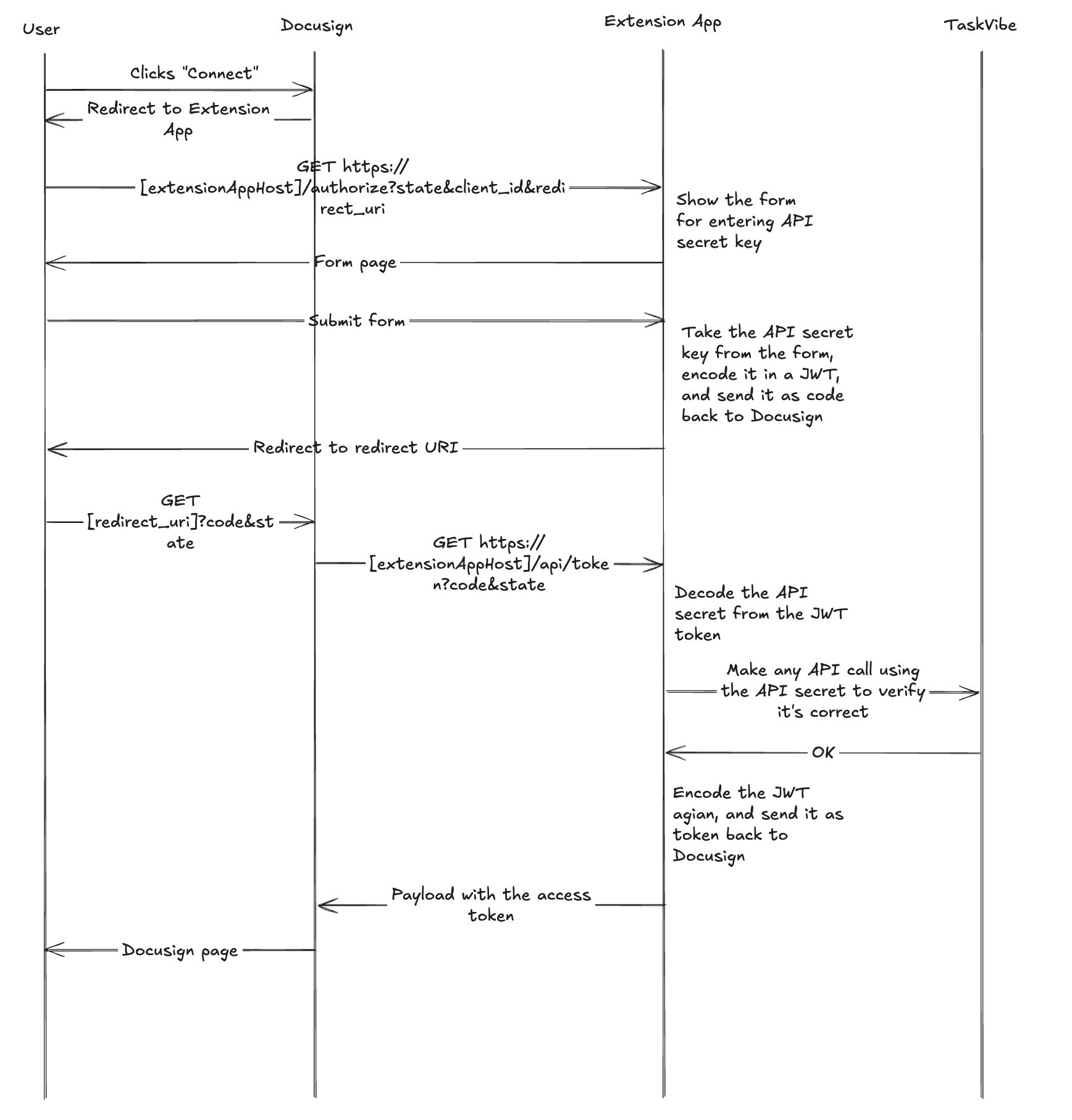
Extended OAuth 2 diagram

In the diagram, we have four actors: the end-user on behalf of whom we are authenticating to TaskVibe, DocuSign, the Extension App, and TaskVibe. We are only in control of the Extension App, and within the Extension App, we need to adhere to the OAuth 2 protocol as expected by Docusign.

  1. In the first step, Docusign will invoke the /authorize endpoint of the Extension App and provide the state, client_id, and redirect_uri parameters. Of these three parameters, state and redirect_uri are essential.
  2. In the /authorize endpoint, the app needs to store state and redirect_uri, as they will be used in the next step. It then needs to display a user-facing form where the user is expected to enter their TaskVibe API key.
  3. Once the user submits the form, we take the API key and encode it in a JWT token, as we will send it over the wire back to Docusign in the form of the code query parameter. This is the "custom" part of our implementation. In a typical OAuth 2 flow, the code is generated by the OAuth 2 server, and the client can then use it to request the access token. In our case, we'll utilize the code to pass the API key to Docusign so it can send it back to us in the next step. Since we are still in control of the user session, we redirect the user to the redirect URI provided by Docusign, along with the code and the state as query parameters.
  4. The redirect URI on Docusign will display a temporary page to the user, and in the background, attempt to retrieve the access token from our backend by providing the code and state to the /api/token endpoint.
  5. The /api/token endpoint takes the code parameter and decodes it to extract the TaskVibe API secret key. It can then verify if the API key is even valid by making a dummy call to TaskVibe using the API key. If the key is valid, we encode it in a new JWT token and return it as the access token to Docusign.
  6. Docusign stores the access token securely on its side and uses it when invoking any of the remaining extension points on the Extension App.

By following the above step, we ensure that the API key is stored in an encoded format on Docusign, and the Extension App effectively extends the OAuth 2 flow. The app is still stateless and does not have the responsibility of storing any secure information locally. It acts as a pure proxy between Docusign and TaskVibe, as it's meant to be.

Writing the Backend

Most Extension Apps are backend-only, but ours needs to have a frontend component for collecting the secret API key. A good fit for such an app is Next.js, which allows us to easily set up both the frontend and the backend.

We'll start by implementing the form for entering the secret API key. This form takes the state, client ID, and redirect URI from the enclosing page, which takes these parameters from the URL.

The form is relatively simple, with only an input field for the API key. However, it can also be used for any additional onboarding questions. If you will ever need to store additional information on Docusign that you want to use implicitly in your Extension App workflow steps, this is a good place to store it alongside the API secret key on Docusign.

// components/auth-form.tsx
"use client";

import type React from "react";
import { useState } from "react";
import { authorizeUser } from "@/lib/actions";

interface AuthFormProps {
  state: string;
  clientId: string;
  redirectUri: string;
}

export function AuthForm({ state, clientId, redirectUri }: AuthFormProps) {
  const [apiKey, setApiKey] = useState("");
  const [isSubmitting, setSubmitting] = useState(false);

  const handleSubmit = async (e: React.FormEvent) => {
    e.preventDefault();
    setSubmitting(true);

    try {
      await authorizeUser(apiKey, state, redirectUri);
    } catch (error) {
      console.error("Authorization failed:", error);
      setSubmitting(false);
    }
  };

  return (
    <div className="card max-w-md w-full">
      <div className="card-header">
        <h2 className="card-title">Connect to TaskVibe</h2>
        <p className="card-description">
          To authenticate with TaskVibe task management tool, please enter your
          API secret key below.
        </p>
      </div>
      <form onSubmit={handleSubmit}>
        <div className="card-content">
          <div className="form-group">
            <label htmlFor="apiKey" className="form-label">
              API Secret Key
            </label>
            <input
              id="apiKey"
              type="password"
              className="form-input"
              placeholder="Enter your TaskVibe API key starting with tv_"
              value={apiKey}
              onChange={(e) => setApiKey(e.target.value)}
              required
              autoComplete="off"
            />
          </div>
          <input type="hidden" name="state" value={state} />
          <input type="hidden" name="redirectUri" value={redirectUri} />
        </div>
        <div className="card-footer">
          <button
            type="submit"
            className="btn btn-primary w-full"
            disabled={isSubmitting}
          >
            {isSubmitting ? "Connecting..." : "Connect"}
          </button>
        </div>
      </form>
    </div>
  );
}

Submitting the form invokes a server action on Next.js, which takes the entered API key, the state, and the redirect URI. It then creates a JWT token using Jose that contains the API key and redirects the user to the redirect URI, sending the JWT token in the code query parameter, along with the state query parameter. This JWT token can be short-lived, as it's only meant to be a temporary holder of the API key while the authentication flow is running.

This is the server action:

// lib/actions.ts
"use server";

import { redirect } from "next/navigation";
import { signJwt } from "./jwt";

export async function authorizeUser(
  apiKey: string,
  state: string,
  redirectUri: string,
) {
  // Create a JWT with 1 hour expiration
  // This is only for the initial authorization code flow, which should be short-lived
  const code = await signJwt({ apiKey }, { expiresIn: "1h" });

  // Construct the redirect URL with state and code
  const redirectUrl = new URL(redirectUri);
  redirectUrl.searchParams.append("state", state);
  redirectUrl.searchParams.append("code", code);

  // Redirect to the callback URL on Docusign
  // Docusign will then invoke the token endpoint with the code to obtain the access token
  redirect(redirectUrl.toString());
}

After the user is redirected to Docusign, Docusign will then invoke the /api/token endpoint to obtain the access token. This endpoint will also be invoked occasionally after the authentication flow, before any extension endpoint is invoked, to get the latest access token using a refresh token. Therefore, the endpoint needs to cover two scenarios.

In the first scenario, during the authentication phase, Docusign will send the code and state to the /api/token endpoint. In this scenario, the endpoint must retrieve the value of the code parameter (storing the JWT value), parse the JWT, and extract the API key. Optionally, it can verify the API key's validity by invoking an endpoint on TaskVibe using that key.

Then, it should return an access token and a refresh token back to Docusign. Since we are not using refresh tokens in our case, we can create a new JWT token containing the API key and return it as both the access token and the refresh token to Docusign.

In the second scenario, Docusign will send the most recently obtained refresh token to get a new access token. Again, because we are not using refresh tokens, we can return both the retrieved access token and the refresh token to Docusign.

The api/token endpoint is implemented as a Next.js route handler:

// src/app/api/token/route.ts

export async function POST(request: NextRequest) {
  try {
    const body = await request.text();
    const parsedBody = parseQueryString(body);
    const { code, refresh_token } = parsedBody;

    if (code) {
      // This is the initial authorization code flow
      // Verify and decode the JWT from the authorization code
      const payload = await verifyJwt<{ apiKey: string }>(code);
      const { apiKey } = payload;

      // Verify the API key with TaskVibe
      const isValid = await verifyApiKey(apiKey);

      if (!isValid) {
        return NextResponse.json({ error: "Invalid API key" }, { status: 401 });
      }

      // Create a new JWT with no expiration
      const accessToken = await signJwt({ apiKey });

      // Return the tokens
      // We are not using a refresh token in this implementation, so we are returning the same token for both access and refresh
      return NextResponse.json({
        access_token: accessToken,
        refresh_token: accessToken,
        token_type: "Bearer",
      });
    } else if (refresh_token) {
      // This is the flow that happens for every subsequent request
      // The refresh token is the same as the access token we created in the initial authorization code flow
      return NextResponse.json({
        access_token: refresh_token,
        refresh_token: refresh_token,
        token_type: "Bearer",
      });
    }

    return NextResponse.json(
      { error: "Missing required parameters" },
      { status: 400 },
    );
  } catch (error) {
    console.error("Token exchange error:", error);
    return NextResponse.json(
      { error: "Invalid or expired token" },
      { status: 401 },
    );
  }
}

In all the remaining endpoints defined in the manifest file, Docusign will provide the access token as the bearer token. It's up to each endpoint to then read this value, parse the JWT, and extract the secret API key.

Conclusion

In conclusion, your Extension App does not need to be limited by the fact that the external system you are integrating with does not have OAuth 2 support or requires additional onboarding. We can safely build upon the existing OAuth 2 protocol and add custom functionality on top of it. This is also a drawback of the approach - it involves custom development, which requires additional work on our part to ensure all cases are covered. Fortunately, the scope of the Extension App does not extend significantly. All remaining endpoints are implemented in the same manner as any other OAuth 2 system, and the app remains a stateless proxy between Docusign and the external system as all necessary information, such as the secret API key and other onboarding details, is stored as an encoded token on the Docusign side.

We hope this blog post was helpful. Keep an eye out for more Docusign content soon, and if you need help building an Extension App of your own, feel free to reach out. The complete source code for this project is available on StackBlitz.

This Dot is a consultancy dedicated to guiding companies through their modernization and digital transformation journeys. Specializing in replatforming, modernizing, and launching new initiatives, we stand out by taking true ownership of your engineering projects.

We love helping teams with projects that have missed their deadlines or helping keep your strategic digital initiatives on course. Check out our case studies and our clients that trust us with their engineering.

You might also like

Implementing Dynamic Types in Docusign Extension Apps cover image

Implementing Dynamic Types in Docusign Extension Apps

Implementing Dynamic Types in Docusign Extension Apps In our previous blog post about Docusign Extension Apps, Advanced Authentication and Onboarding Workflows with Docusign Extension Apps, we touched on how you can extend the OAuth 2 flow to build a more powerful onboarding flow for your Extension Apps. In this blog post, we will continue explaining more advanced patterns in developing Extension Apps. For that reason, we assume at least basic familiarity with how Extension Apps work and ideally some experience developing them. To give a brief recap, Docusign Extension Apps are a powerful way to embed custom logic into Docusign agreement workflows. These apps are lightweight services, typically cloud-hosted, that integrate at specific workflow extension points to perform custom actions, such as data validation, participant input collection, or interaction with third-party services. Each Extension App is configured using a manifest file. This manifest defines metadata such as the app's author, support links, and the list of extension points it uses (these are the locations in the workflow where your app's logic will be executed). The extension points that are relevant for us in the context of this blog post are GetTypeNames and GetTypeDefinitions. These are used by Docusign to retrieve the types supported by the Extension App and their definitions, and to show them in the Maestro UI. In most apps, these types are static and rarely change. However, they don't have to be. They can also be dynamic and change based on certain configurations in the target system that the Extension App is integrating with, or based on the user role assigned to the Maestro administrator on the target system. Static vs. Dynamic Types To explain the difference between static and dynamic types, we'll use the example from our previous blog post, where we integrated with an imaginary task management system called TaskVibe. In the example, our Extension App enabled agreement workflows to communicate with TaskVibe, allowing tasks to be read, created, and updated. Our first approach to implementing the GetTypeNames and GetTypeDefinitions endpoints for the TaskVibe Extension App might look like the following. The GetTypeNames endpoint returns a single record named task: ` Given the type name task, the GetTypeDefinitions endpoint would return the following definition for that type: ` As noted in the Docusign documentation, this endpoint must return a Concerto schema representing the type. For clarity, we've omitted most of the Concerto-specific properties. The above declaration states that we have a task type, and this type has properties that correspond to task fields in TaskVibe, such as record ID, title, description, assignee, and so on. The type definition and its properties, as described above, are static and they never change. A TaskVibe task will always have the same properties, and these are essentially set in stone. Now, imagine a scenario where TaskVibe supports custom properties that are also project-dependent. One project in TaskVibe might follow a typical agile workflow with sprints, and the project manager might want a "Sprint" field in every task within that project. Another project might use a Kanban workflow, where the project manager wants a status field with values like "Backlog," "ToDo," and so on. With static types, we would need to return every possible field from any project as part of the GetTypeDefinitions response, and this introduces new challenges. For example, we might be dealing with hundreds of custom field types, and showing them in the Maestro UI might be too overwhelming for the Maestro administrator. Or we might be returning fields that are simply not usable by the Maestro administrator because they relate to projects the administrator doesn't have access to in TaskVibe. With dynamic types, however, we can support this level of customization. Implementing Dynamic Types When Docusign sends a request to the GetTypeNames endpoint and the types are dynamic, the Extension App has a bit more work than before. As we've mentioned earlier, we can no longer return a generic task type. Instead, we need to look into each of the TaskVibe projects the user has access to, and return the tasks as they are represented under each project, with all the custom fields. (Determining access can usually be done by making a query to a user information endpoint on the target system using the same OAuth 2 token used for other calls.) Once we find the task definitions on TaskVibe, we then need to return them in the response of GetTypeNames, where each type corresponds to a task for the given project. This is a big difference from static types, where we would only return a single, generic task. For example: ` The key point here is that we are now returning one type per task in a TaskVibe project. You can think of this as having a separate class for each type of task, in object-oriented lingo. The type name can be any string you choose, but it needs to be unique in the list, and it needs to contain the minimum information necessary to be able to distinguish it from other task definitions in the list. In our case, we've decided to form the ID by concatenating the string "task_" with the ID of the project on TaskVibe. The implementation of the GetTypeDefinitions endpoint needs to: 1. Extract the project ID from the requested type name. 1. Using the project ID, retrieve the task definition from TaskVibe for that project. This definition specifies which fields are present on the project's tasks, including all custom fields. 1. Once the fields are retrieved, map them to the properties of the Concerto schema. The resulting JSON could look like this (again, many of the Concerto properties have been omitted for clarity): ` Now, type definitions are fully dynamic and project-dependent. Caching of Type Definitions on Docusign Docusign maintains a cache of type definitions after an initial connection. This means that changes made to your integration (particularly when using dynamic types) might not be immediately visible in the Maestro UI. To ensure users see the latest data, it's useful to inform them that they may need to refresh their Docusign connection in the App Center UI if new fields are added to their integrated system (like TaskVibe). As an example, a newly added custom field on a TaskVibe project wouldn't be reflected until this refresh occurs. Conclusion In this blog post, we've explored how to leverage dynamic types within Docusign Extension Apps to create more flexible integrations with external systems. While static types offer simplicity, they can be constraining when working with external systems that offer a high level of customization. We hope that this blog post provides you with some ideas on how you can tackle similar problems in your Extension Apps....

Communication Between Client Components in Next.js cover image

Communication Between Client Components in Next.js

Communication Between Client Components in Next.js In recent years, Next.js has become one of the most popular React frameworks for building server-rendered applications. With the introduction of the App Router in Next.js 13, the framework has taken a major leap forward by embracing a new approach to building web applications: the concept of server components and client components. This separation of concerns allows developers to strategically decide which parts of their application should be rendered on the server and which are then hydrated in the browser for interactivity. The Challenge: Communicating Between Client Components While server components offer numerous benefits, they also introduce a new challenge: how can client components within different boundaries communicate with each other? For instance, let's consider a scenario where you have a button (a client component) and a separate client component that displays the number of times the button has been clicked. In a regular React application, this would typically be accomplished by lifting the state to a common ancestor component, allowing the button to update the state, which is then passed down to the counter display component. However, the traditional approach may not be as straightforward in a Next.js application that heavily relies on server components, with client components scattered across the page. This blog post will explore three ways to facilitate communication between client components in Next.js, depending on where you want to store the state. Lifting State to a Common Client Component One approach to communicating between client components is to lift the state to a common client component. This could be a React context provider, a state management system like Zustand, or any other solution that allows you to share state across components. The key aspect is that this wrapper component should be higher up in the tree (perhaps even in the layout) and accept server components as children. Next.js allows you to interleave client and server components as much as you want, as long as server components are passed to client components as props or as component children. Here's how this approach might look in practice. First of all, we'd create a wrapper client component that holds the state: ` This wrapper component can be included in the layout: ` Any server components can be rendered within the layout, potentially nesting them several levels deep. Finally, we'd create two client components, one for the button and one for the counter display: ` ` The entire client and server component tree is rendered on the server, and the client components are then hydrated in the browser and initialized. From then on, the communication between the client components works just like in any regular React application. Check out the page using this pattern in the embedded Stackblitz window below: Using Query Params for State Management Another approach is to use query params instead of a wrapper client component and store the state in the URL. In this scenario, you have two client components: the button and the counter display. The counter value (the state) is stored in a query param, such as counterValue. The client components can read the current counter value using the useSearchParams hook. Once read, the useRouter hook can update the query param, effectively updating the counter value. However, there's one gotcha to this approach. If a route is statically rendered, calling useSearchParams will cause the client component tree up to the closest Suspense boundary to be client-side rendered. Next.js recommends wrapping the client component that uses useSearchParams in a boundary. Here's an example of how this approach might look. The button reads the current counter value and updates it on click by using the router's replace function: ` The counter display component is relatively simple, only reading the counter value: ` And here is the page that is a server component, hosting both of the above client components: ` Feel free to check out the above page in the embedded Stackblitz below: Storing State on the Server The third approach is to store the state on the server. In this case, the counter display component accepts the counter value as a prop, where the counter value is passed by a parent server component that reads the counter value from the database. The button component, when clicked, calls a server action that updates the counter value and calls revalidatePath() so that the counter value is refreshed, and consequently, the counter display component is re-rendered. It's worth noting that in this approach, unless you need some interactivity in the counter display component, it doesn't need to be a client component – it can be purely server-rendered. However, if both components need to be client components, here's an example of how this approach might look. First, we'll implement a server action that updates the counter value. We won't get into the mechanics of updating it, which in a real app would require a call to the database or an external API - so we're only commenting that part. After that, we revalidate the path so that the Next.js caches are purged, and the counter value is retrieved again in server components that read it. ` The button is a simple client component that calls the above server action when clicked. ` The counter display component reads the counter value from the parent: ` While the parent is a server component that reads the counter value from the database or an external API. ` This pattern can be seen in the embedded Stackblitz below: Conclusion Next.js is a powerful framework that offers various choices for implementing communication patterns between client components. Whether you lift state to a common client component, use query params for state management, or store the state on the server, Next.js provides all the tools you need to add a communication path between two separate client component boundaries. We hope this blog post has been useful in demonstrating how to facilitate communication between client components in Next.js. Check out other Next.js blog posts we've written for more insights and best practices. You can also view the entire codebase for the above snippets on StackBlitz....

Understanding Sourcemaps: From Development to Production cover image

Understanding Sourcemaps: From Development to Production

What Are Sourcemaps? Modern web development involves transforming your source code before deploying it. We minify JavaScript to reduce file sizes, bundle multiple files together, transpile TypeScript to JavaScript, and convert modern syntax into browser-compatible code. These optimizations are essential for performance, but they create a significant problem: the code running in production does not look like the original code you wrote. Here's a simple example. Your original code might look like this: ` After minification, it becomes something like this: ` Now imagine trying to debug an error in that minified code. Which line threw the exception? What was the value of variable d? This is where sourcemaps come in. A sourcemap is a JSON file that contains a mapping between your transformed code and your original source files. When you open browser DevTools, the browser reads these mappings and reconstructs your original code, allowing you to debug with variable names, comments, and proper formatting intact. How Sourcemaps Work When you build your application with tools like Webpack, Vite, or Rollup, they can generate sourcemap files alongside your production bundles. A minified file references its sourcemap using a special comment at the end: ` The sourcemap file itself contains a JSON structure with several key fields: ` The mappings field uses an encoding format called VLQ (Variable Length Quantity) to map each position in the minified code back to its original location. The browser's DevTools use this information to show you the original code while you're debugging. Types of Sourcemaps Build tools support several variations of sourcemaps, each with different trade-offs: Inline sourcemaps: The entire mapping is embedded directly in your JavaScript file as a base64 encoded data URL. This increases file size significantly but simplifies deployment during development. ` External sourcemaps: A separate .map file that's referenced by the JavaScript bundle. This is the most common approach, as it keeps your production bundles lean since sourcemaps are only downloaded when DevTools is open. Hidden sourcemaps: External sourcemap files without any reference in the JavaScript bundle. These are useful when you want sourcemaps available for error tracking services like Sentry, but don't want to expose them to end users. Why Sourcemaps During development, sourcemaps are absolutely critical. They will help avoid having to guess where errors occur, making debugging much easier. Most modern build tools enable sourcemaps by default in development mode. Sourcemaps in Production Should you ship sourcemaps to production? It depends. While security by making your code more difficult to read is not real security, there's a legitimate argument that exposing your source code makes it easier for attackers to understand your application's internals. Sourcemaps can reveal internal API endpoints and routing logic, business logic, and algorithmic implementations, code comments that might contain developer notes or TODO items. Anyone with basic developer tools can reconstruct your entire codebase when sourcemaps are publicly accessible. While the Apple leak contained no credentials or secrets, it did expose their component architecture and implementation patterns. Additionally, code comments can inadvertently contain internal URLs, developer names, or company-specific information that could potentially be exploited by attackers. But that’s not all of it. On the other hand, services like Sentry can provide much more actionable error reports when they have access to sourcemaps. So you can understand exactly where errors happened. If a customer reports an issue, being able to see the actual error with proper context makes diagnosis significantly faster. If your security depends on keeping your frontend code secret, you have bigger problems. Any determined attacker can reverse engineer minified JavaScript. It just takes more time. Sourcemaps are only downloaded when DevTools is open, so shipping them to production doesn't affect load times or performance for end users. How to manage sourcemaps in production You don't have to choose between no sourcemaps and publicly accessible ones. For example, you can restrict access to sourcemaps with server configuration. You can make .map accessible from specific IP addresses. Additionally, tools like Sentry allow you to upload sourcemaps during your build process without making them publicly accessible. Then configure your build to generate sourcemaps without the reference comment, or use hidden sourcemaps. Sentry gets the mapping information it needs, but end users can't access the files. Learning from Apple's Incident Apple's sourcemap incident is a valuable reminder that even the largest tech companies can make deployment oversights. But it also highlights something important: the presence of sourcemaps wasn't actually a security vulnerability. This can be achieved by following good security practices. Never include sensitive data in client code. Developers got an interesting look at how Apple structures its Svelte codebase. The lesson is that you must be intentional about your deployment configuration. If you're going to include sourcemaps in production, make that decision deliberately after considering the trade-offs. And if you decide against using public sourcemaps, verify that your build process actually removes them. In this case, the public repo was quickly removed after Apple filed a DMCA takedown. (https://github.com/github/dmca/blob/master/2025/11/2025-11-05-apple.md) Making the Right Choice So what should you do with sourcemaps in your projects? For development: Always enable them. Use fast options, such as eval-source-map in Webpack or the default configuration in Vite. The debugging benefits far outweigh any downsides. For production: Consider your specific situation. But most importantly, make sure your sourcemaps don't accidentally expose secrets. Review your build output, check for hardcoded credentials, and ensure sensitive configurations stay on the backend where they belong. Conclusion Sourcemaps are powerful development tools that bridge the gap between the optimized code your users download and the readable code you write. They're essential for debugging and make error tracking more effective. The question of whether to include them in production doesn't have a unique answer. Whatever you decide, make it a deliberate choice. Review your build configuration. Verify that sourcemaps are handled the way you expect. And remember that proper frontend security doesn't come from hiding your code. Useful Resources * Source map specification - https://tc39.es/ecma426/ * What are sourcemaps - https://web.dev/articles/source-maps * VLQ implementation - https://github.com/Rich-Harris/vlq * Sentry sourcemaps - https://docs.sentry.io/platforms/javascript/sourcemaps/ * Apple DMCA takedown - https://github.com/github/dmca/blob/master/2025/11/2025-11-05-apple.md...

Let's innovate together!

We're ready to be your trusted technical partners in your digital innovation journey.

Whether it's modernization or custom software solutions, our team of experts can guide you through best practices and how to build scalable, performant software that lasts.

Prefer email? hi@thisdot.co